SMALL STEPS. USEFUL SKILLS.
Check for a software update
Install available security and system improvements.
Use the pictures where shown. Follow the short instructions between them.
STEP 1 OF 5
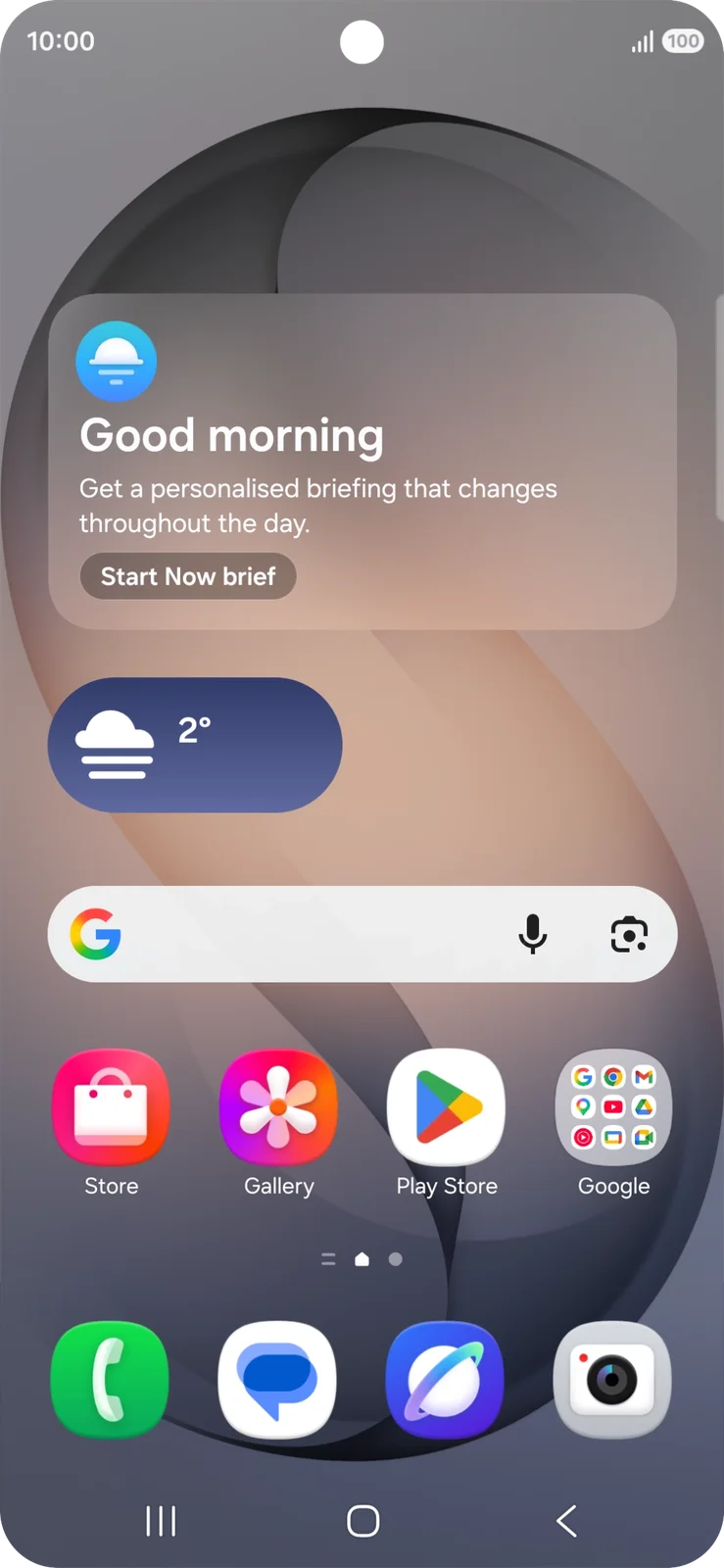
Open the quick panel
Swipe down from the top of the screen with two fingers.
Prefer to see all the steps together?+
STEP 1
Open the quick panel
Swipe down from the top of the screen with two fingers.
STEP 2
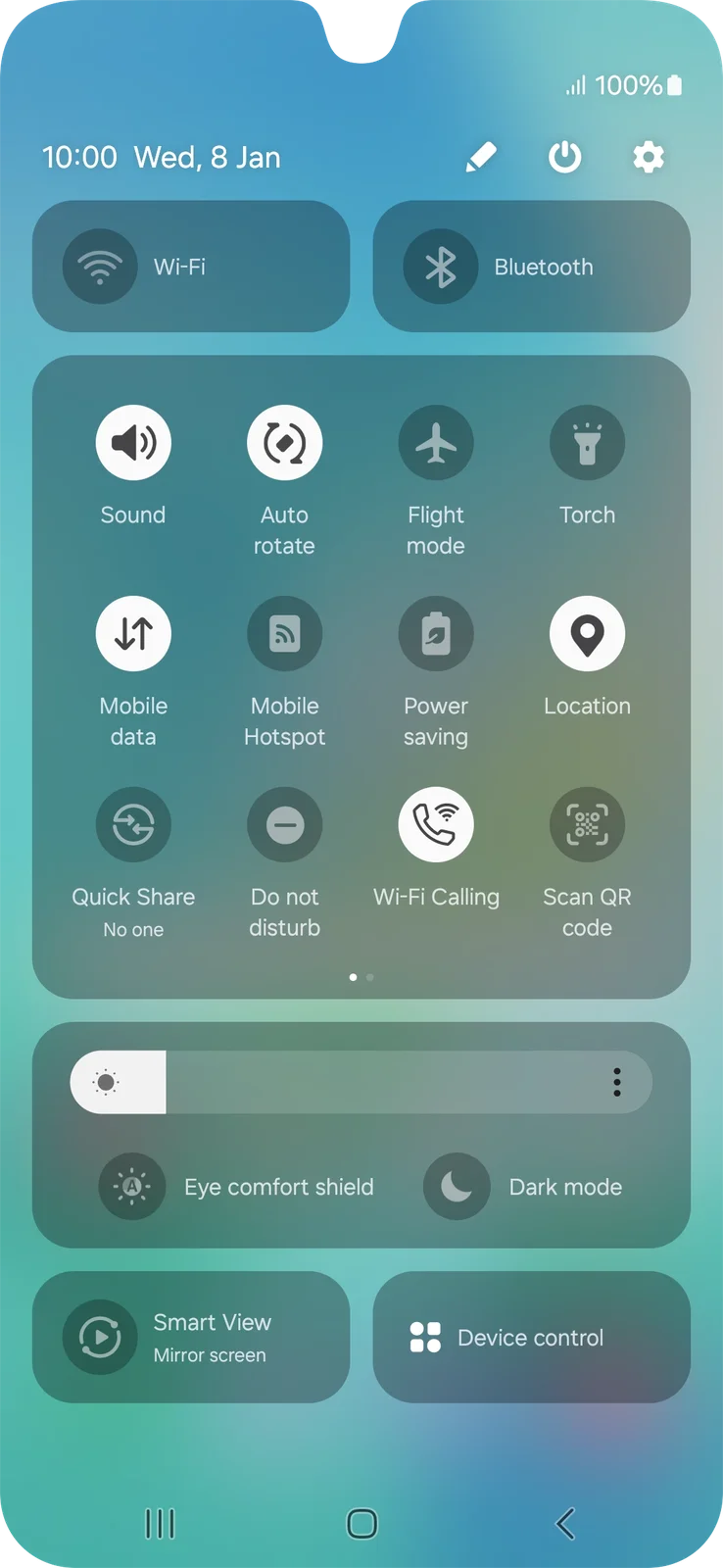
Open Settings
Tap the Settings cog at the top right.
Expanded Quick settings before opening Settings. Newer Samsung software may arrange these controls differently.
STEP 3
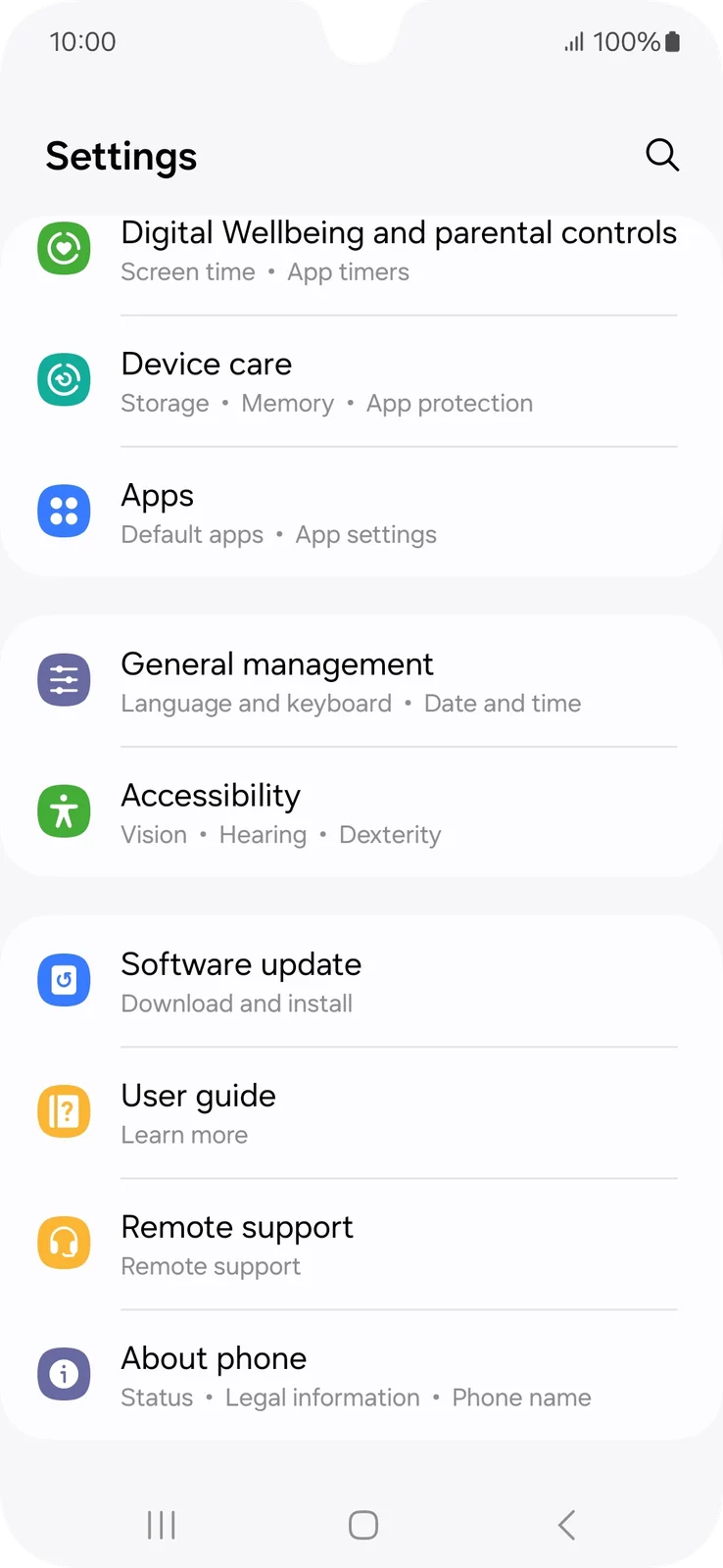
Open Software update
Scroll down and tap Software update.
The Settings list after scrolling down. Software update is below Accessibility.
STEP 4
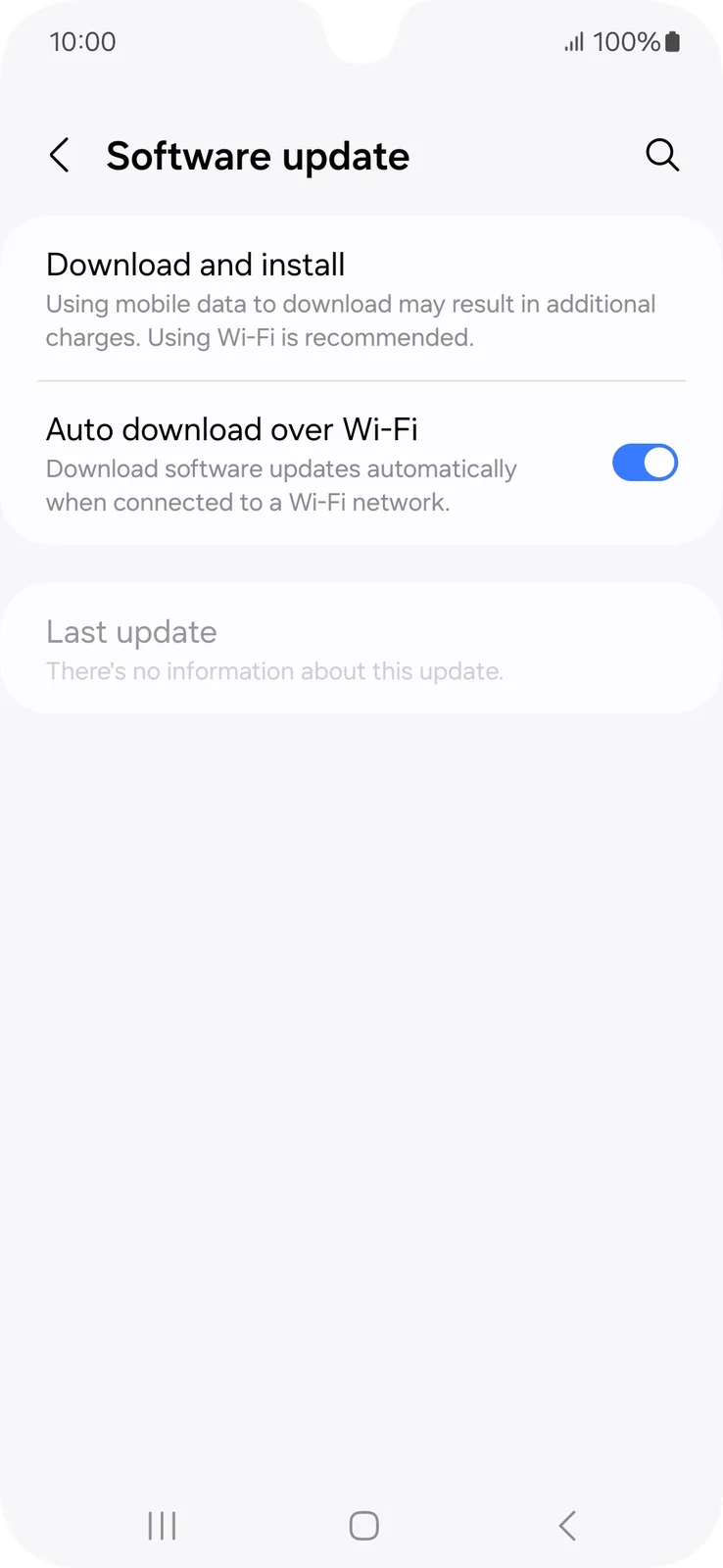
Check for the update
Tap Download and install. If an update is already downloaded, your screen may offer Install now.
Tap Download and install to check for an update. This picture does not show an available update or completed installation.
STEP 5
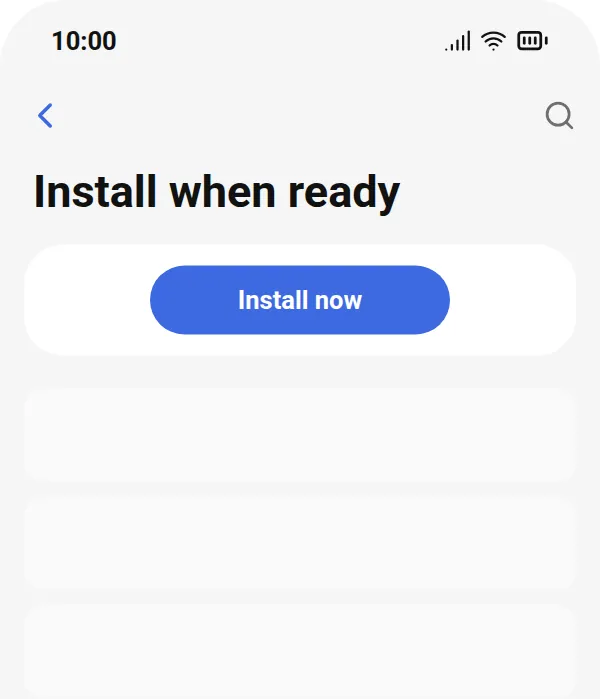
Install when ready
Read the update details, then choose the install option when ready. Keep the device powered while it installs and restarts.
No available update means there is nothing offered to this device now; it does not prove that it runs the newest Android version available on other phones.
IF SOMETHING LOOKS DIFFERENT
A little help along the way.
Your menus may look different after an update. Look for the same control name and take your time.
I cannot find that option+
Check that this guide covers your device and software. If the names do not match, use the manufacturer’s instructions linked below for your model.
I need to go back a step+
Use Previous step or select a step number above. This changes the guide only; it does not undo anything on your device.
Are these pictures of my device?+
They are example screens showing exactly where to tap. Your names, apps, wallpaper and layout may look a little different, but the options you need are the same. Some pictures show what you should see after a step.