SMALL STEPS. USEFUL SKILLS.
Restart your Mac
Turn the Mac off and on again to fix a frozen screen or slow performance.
Use the pictures where shown. Follow the short instructions between them.
STEP 1 OF 6
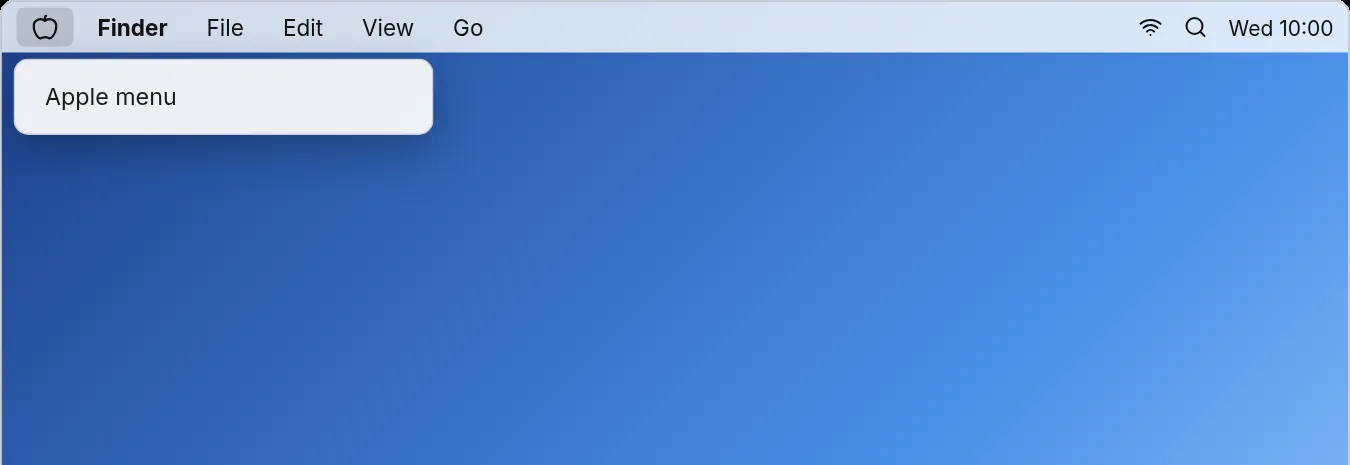
Save, then open the Apple menu
Save your documents. Click the Apple menu at the top left.
Prefer to see all the steps together?+
STEP 1
Save, then open the Apple menu
Save your documents. Click the Apple menu at the top left.
STEP 2
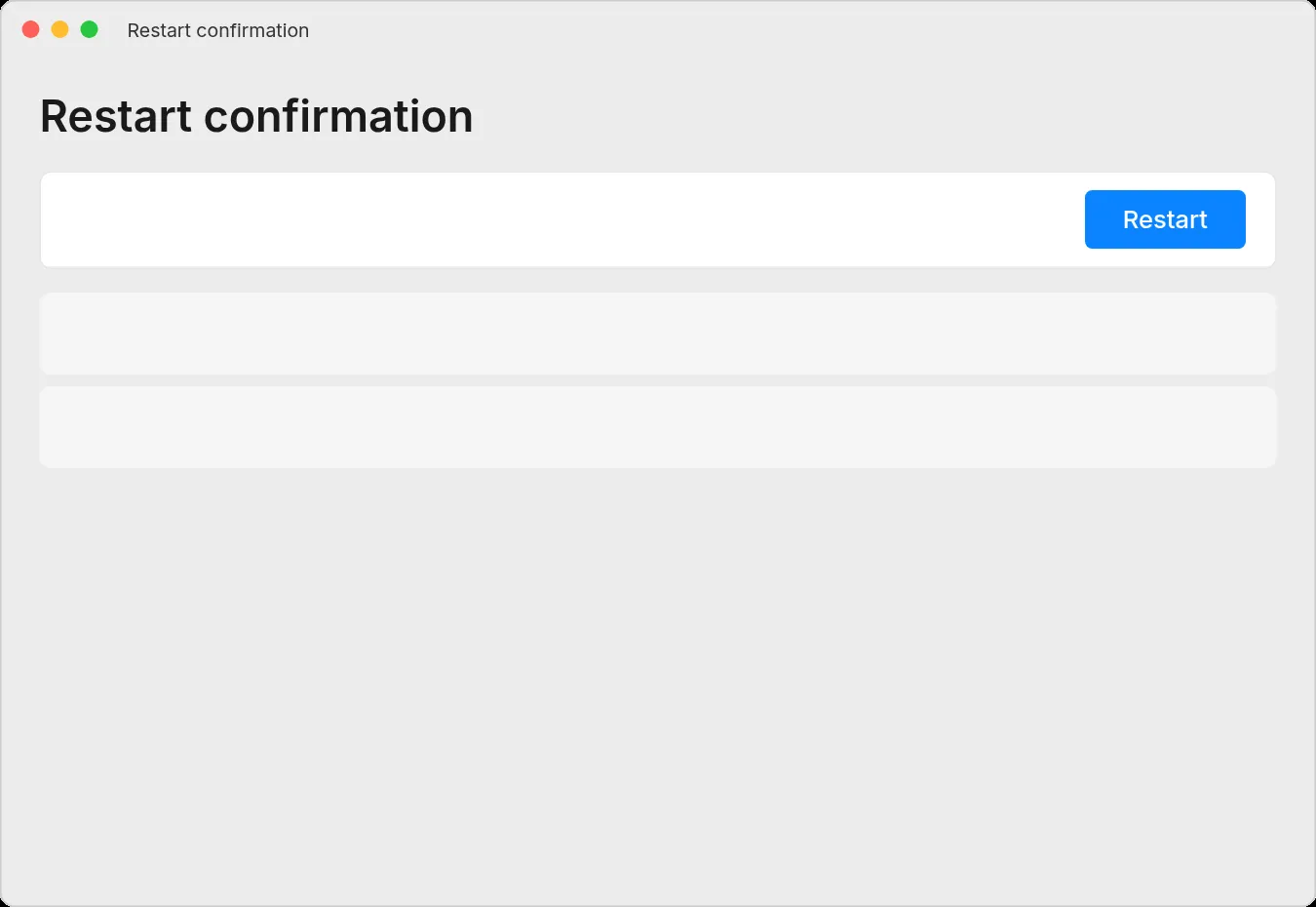
Click Restart
Click Restart in the Apple menu.
STEP 3
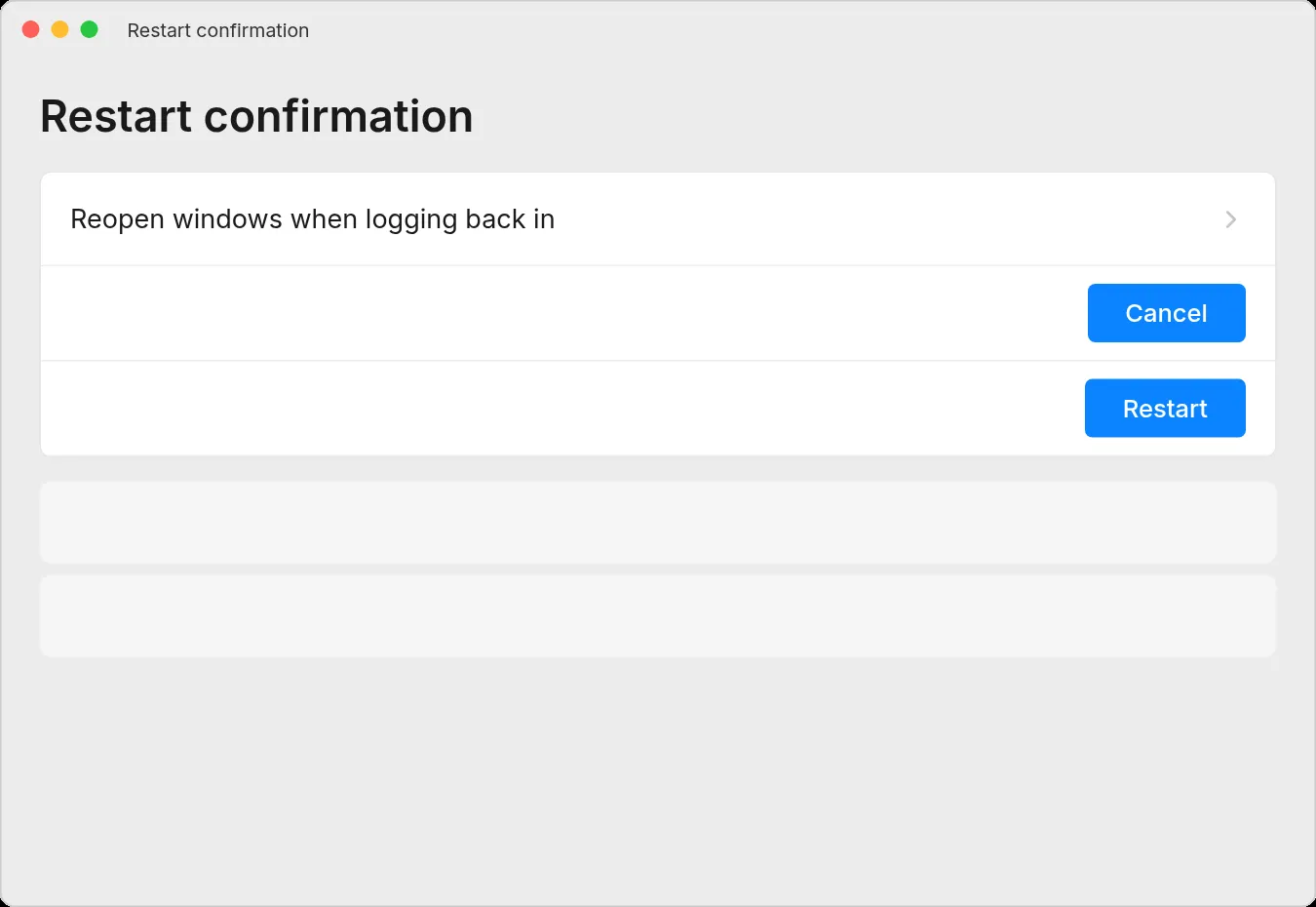
Choose about your windows
In the message that appears, tick or untick Reopen windows when logging back in.
STEP 4
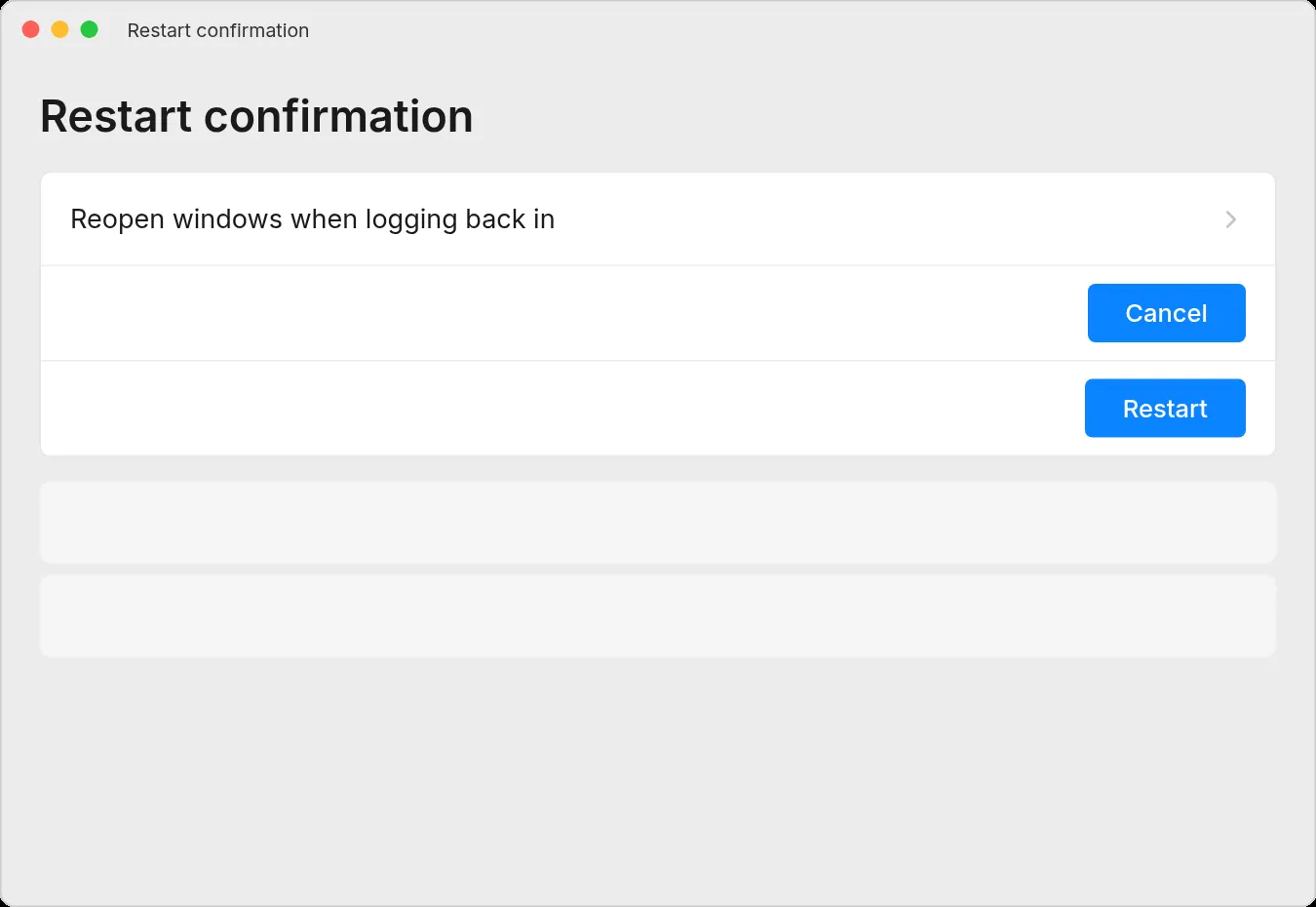
Confirm
Click Restart to confirm.
STEP 5
Let the Mac restart
Wait for the Mac to restart and sign in when prompted.
STEP 6
Only if the Mac is unresponsive
If a normal restart is impossible, hold the physical power button until the Mac shuts down, then press it to start again.
A forced shutdown can lose unsaved work. It is a recovery option, not a routine fourth step after a successful restart.
IF SOMETHING LOOKS DIFFERENT
A little help along the way.
Your menus may look different after an update. Look for the same control name and take your time.
I cannot find that option+
Check that this guide covers your device and software. If the names do not match, use the manufacturer’s instructions linked below for your model.
I need to go back a step+
Use Previous step or select a step number above. This changes the guide only; it does not undo anything on your device.
Are these pictures of my device?+
They are example screens showing exactly where to click. Your names, apps, wallpaper and layout may look a little different, but the options you need are the same. Some pictures show what you should see after a step.