The useful answer
Most of what matters — contacts, photos, messages and apps — transfers automatically using each platform's official tool: Quick Start for iPhone to iPhone, the built-in Android transfer flow for Android to Android, or Apple's Move to iOS and Google's Switch to Android apps for crossing platforms. The parts that catch people out are the same every time: WhatsApp needs its own backup step, two-factor authenticator apps need transferring individually, and banking apps almost always need re-registering from scratch. Do those three separately and the rest should look after itself.
iPhone to iPhone: Quick Start
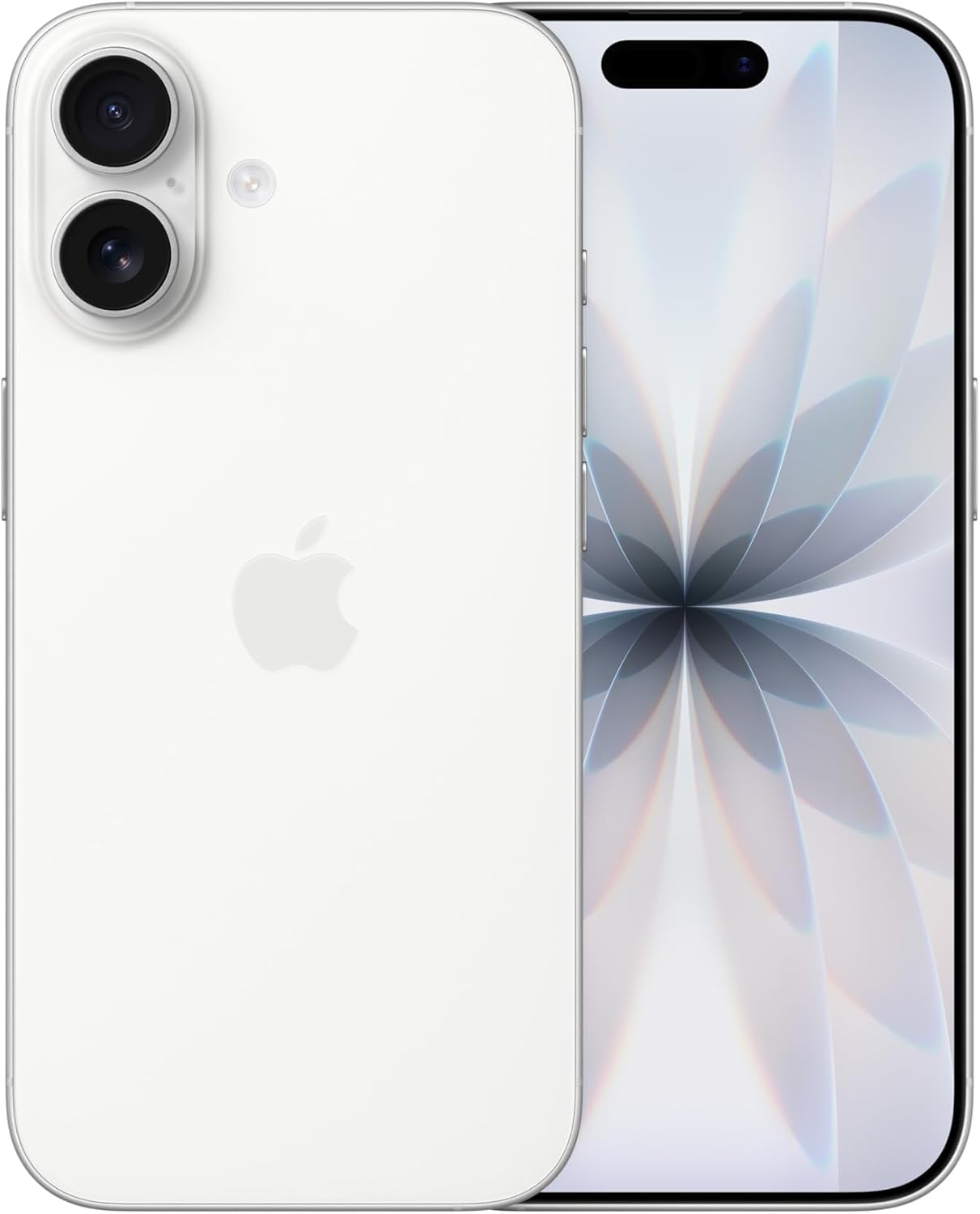
Turn on your new iPhone and place it near your old one, with Wi-Fi and Bluetooth switched on on the old device. Follow the on-screen Quick Start prompt, connect to Wi-Fi or your mobile network, and set up Face ID or Touch ID.
You'll be offered two transfer methods: 'Download from iCloud,' which lets you use the new phone straight away while your data fills in over time, or 'Transfer directly from previous device,' which is faster overall but leaves both phones unusable until it finishes. Keep both devices near each other and on power until the transfer completes — for very large photo and video libraries, plugging the two phones together with a cable speeds things up noticeably.
- Devices enrolled in a school or business management system can't use Quick Start — you'll need a different method
- If you use an Apple Watch, unpair it from the old phone first, which triggers a backup so your health and activity history carries over once you re-pair it
Android to Android
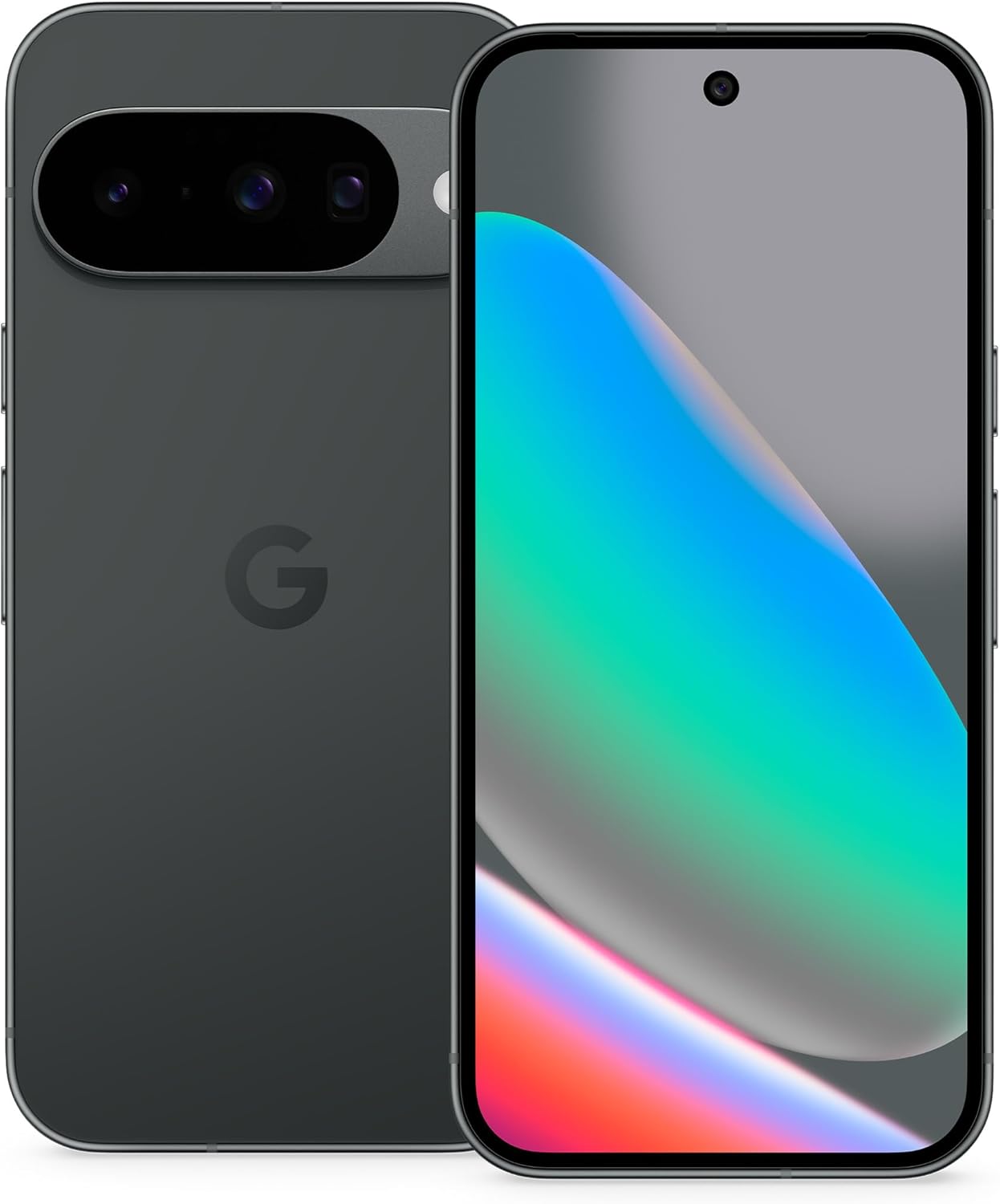
Charge both phones and make sure your old one can be unlocked with its PIN, pattern or password. On the new phone, choose 'set up using another device' and select Android device, then scan the QR code shown to pair the two phones. Enter your old phone's PIN to transfer your Wi-Fi details and Google account, then choose which apps and data to copy across.
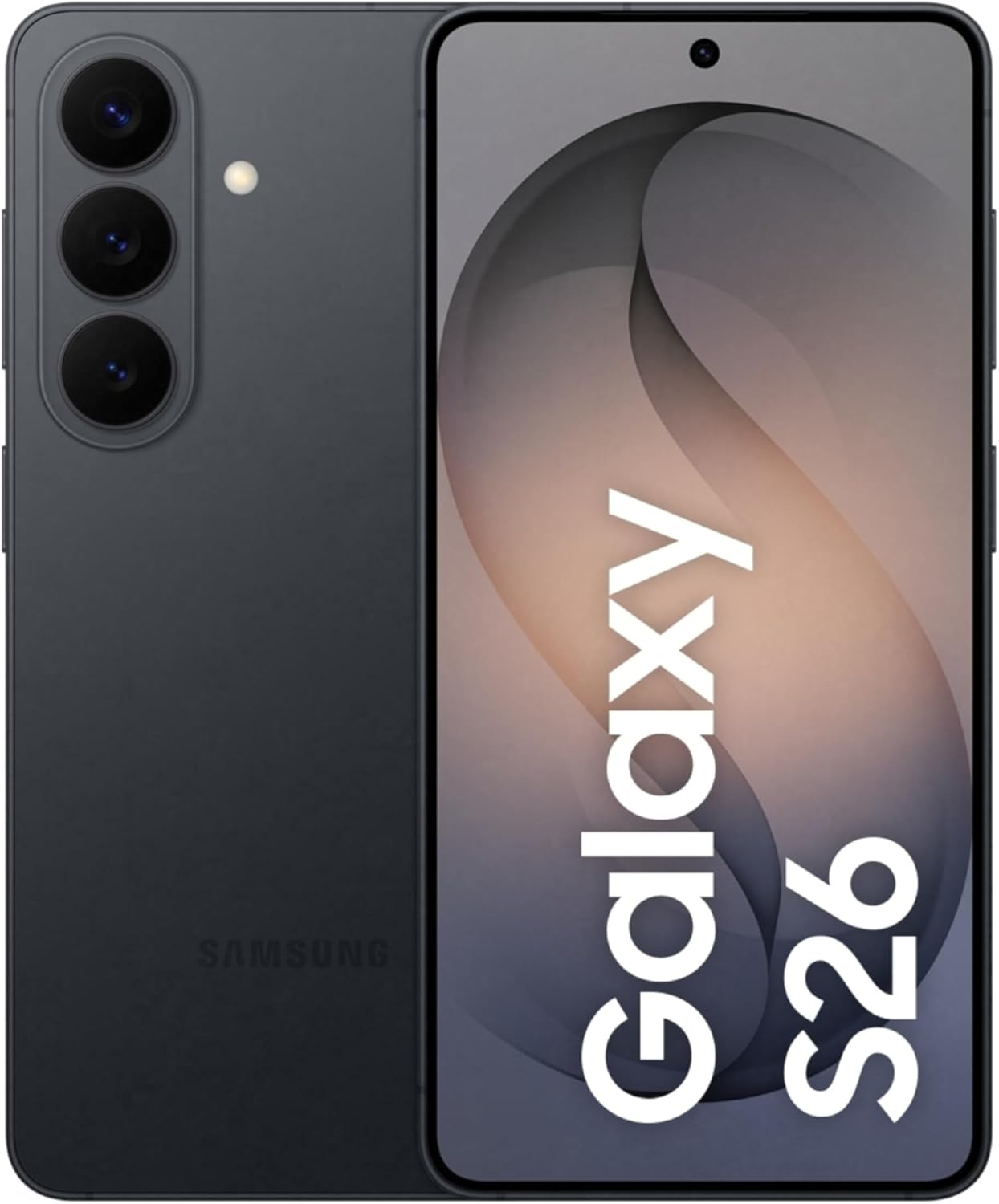
If you're moving between two Samsung phones, Smart Switch (built into Settings on modern Galaxy devices) works similarly: Settings → Accounts and backup → Bring data from old device, then choose a wireless or cabled connection.
Switching between iPhone and Android
Moving to an iPhone from Android: install Apple's Move to iOS app on your Android phone, then choose 'Move Data from Android' during the new iPhone's setup. The two phones generate a matching code and pair over their own private Wi-Fi network. Contacts, message history, photos, calendars and some free apps transfer automatically — paid apps, music and DRM-protected content don't, and need reinstalling or moving manually via cloud storage.
Moving to Android from iPhone: during setup, choose 'iPhone or iPad' as your source and scan the QR code shown (or use a cable if one isn't offered). One thing Google's own guidance specifically flags: deregister iMessage or switch it off before you finish, otherwise texts from other iPhone users can keep trying to reach your old number via iMessage rather than arriving as normal texts on your new Android phone.
The three things that need their own separate step
- WhatsApp: needs its own backup and restore, not just an OS-level transfer. The most common mistake is opening WhatsApp on the new phone before the main transfer has finished — always let the phone transfer complete first, then restore WhatsApp from its own backup using the same account.
- Two-factor authenticator apps: Google Authenticator has a built-in 'Transfer accounts' export flow — use it, and don't delete the app from your old phone until you've confirmed it works on the new one. Microsoft Authenticator is more fragile and often needs each account's 2FA removed and re-added individually by scanning a fresh QR code from the service itself.
- Banking apps: almost every UK banking app needs re-registering on the new device from scratch — delete, reinstall, and log in with your existing details. Some banks offer a QR-code 'new device' transfer; others use a one-time activation code sent by post or text.
The sources behind this advice
Read the original information and testing.
 Amazon product listing image
 Amazon product listing image
 Amazon product listing image