SMALL STEPS. USEFUL SKILLS.
Turn off notifications for one app
Stop a single noisy app from interrupting you without silencing everything.
Use the pictures where shown. Follow the short instructions between them.
STEP 1 OF 4
Open Settings
Tap the grey Settings icon.
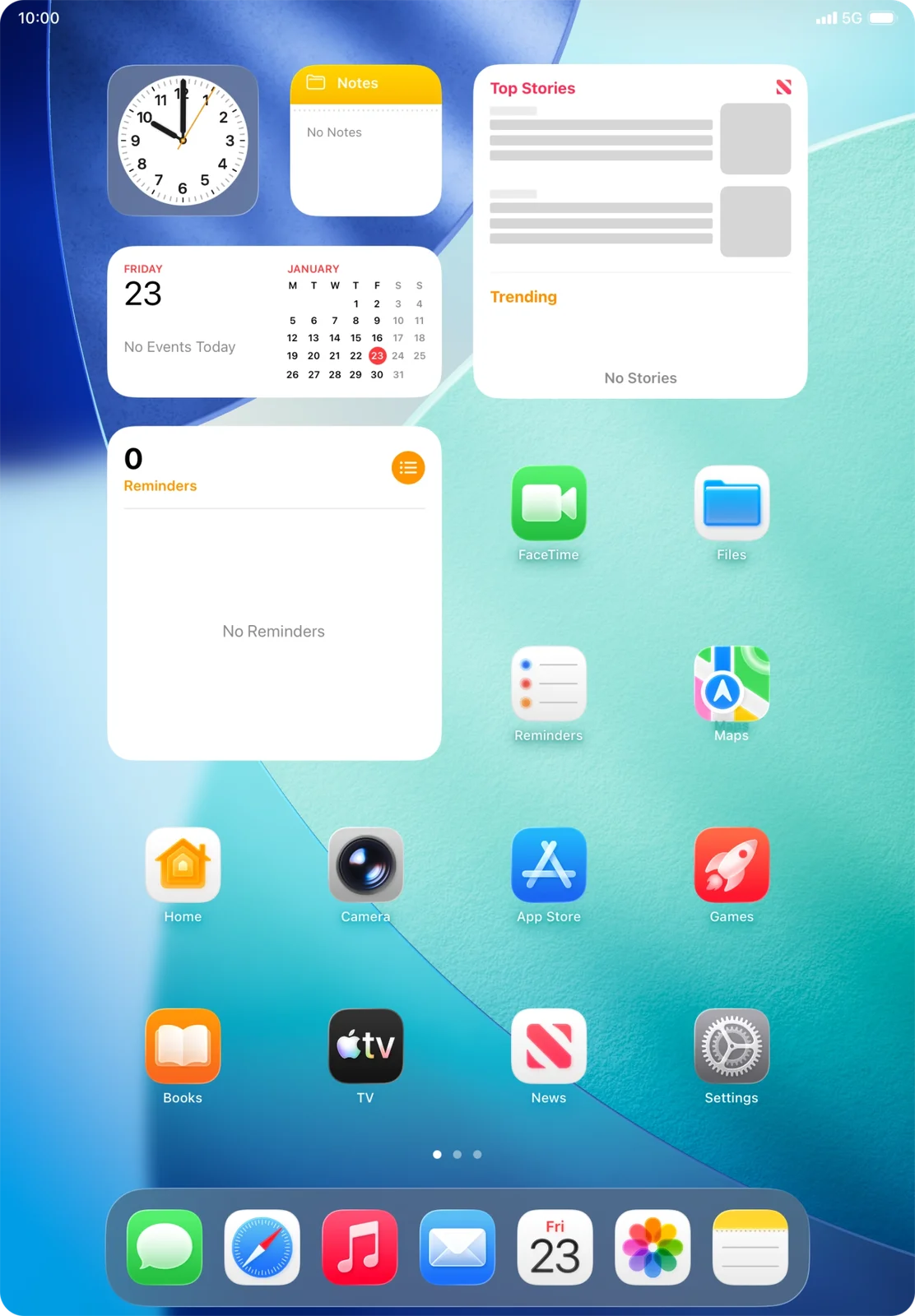
Settings is near the lower-right corner of this Home Screen.
Prefer to see all the steps together?+
STEP 1
Open Settings
Tap the grey Settings icon.
Settings is near the lower-right corner of this Home Screen.
STEP 2
Open Notifications
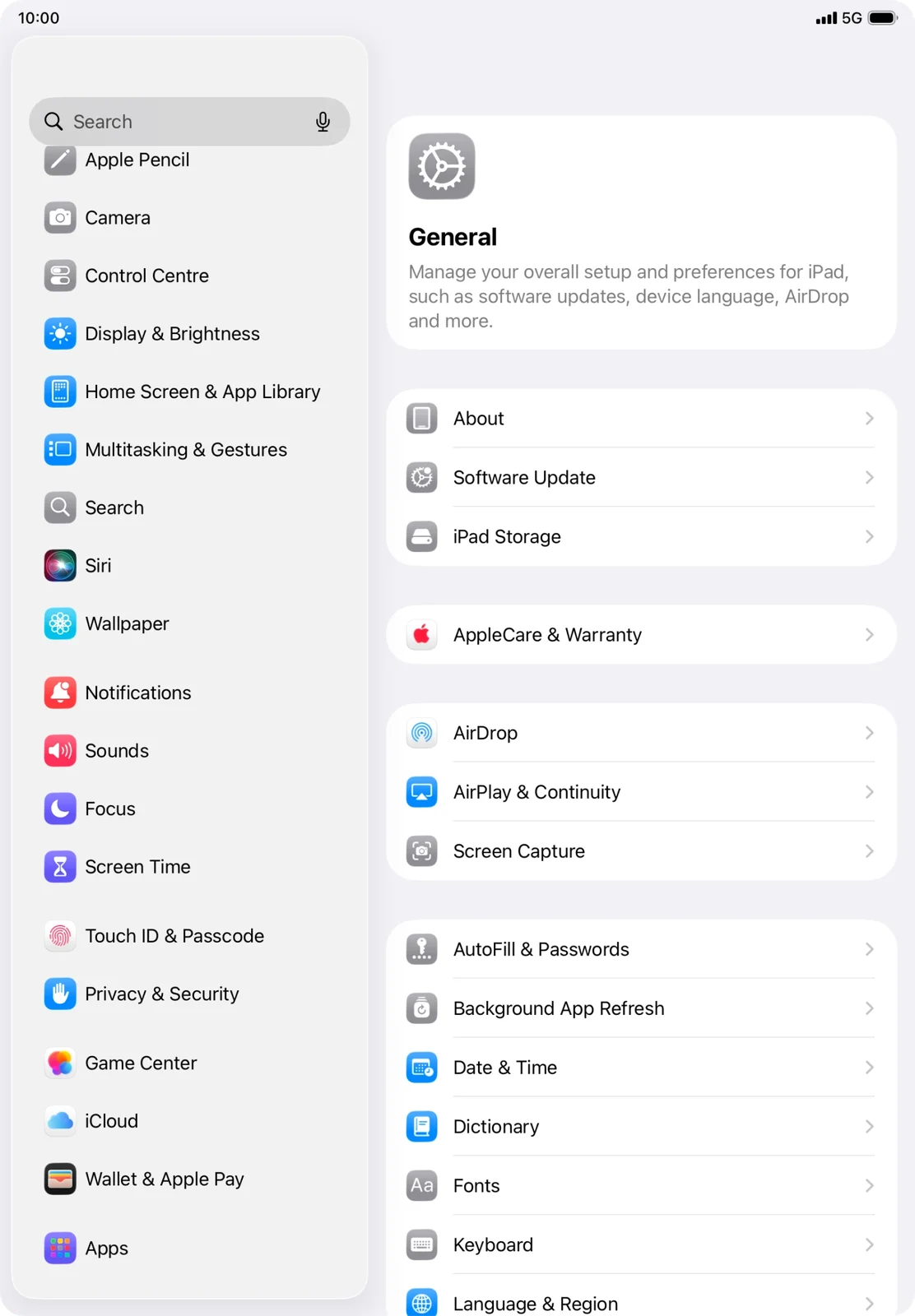
Scroll the left-hand list, then tap Notifications.
Notifications is below Wallpaper in the Settings sidebar.
STEP 3
Choose your app
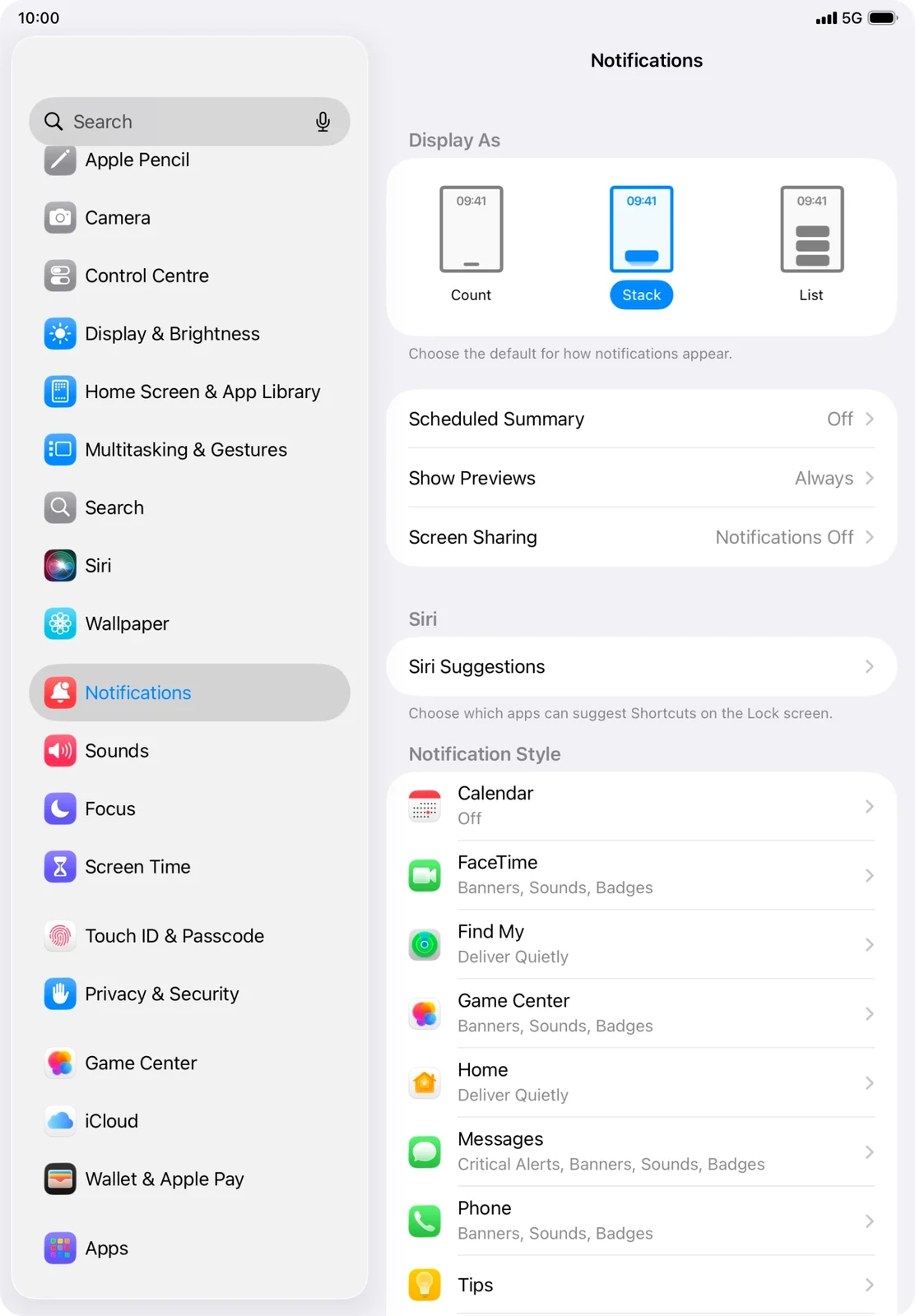
Find Notification Style in the right-hand panel and tap the app you want to change.
The app list includes FaceTime, which the next picture uses. Choose your own app.
STEP 4
Turn its notifications off
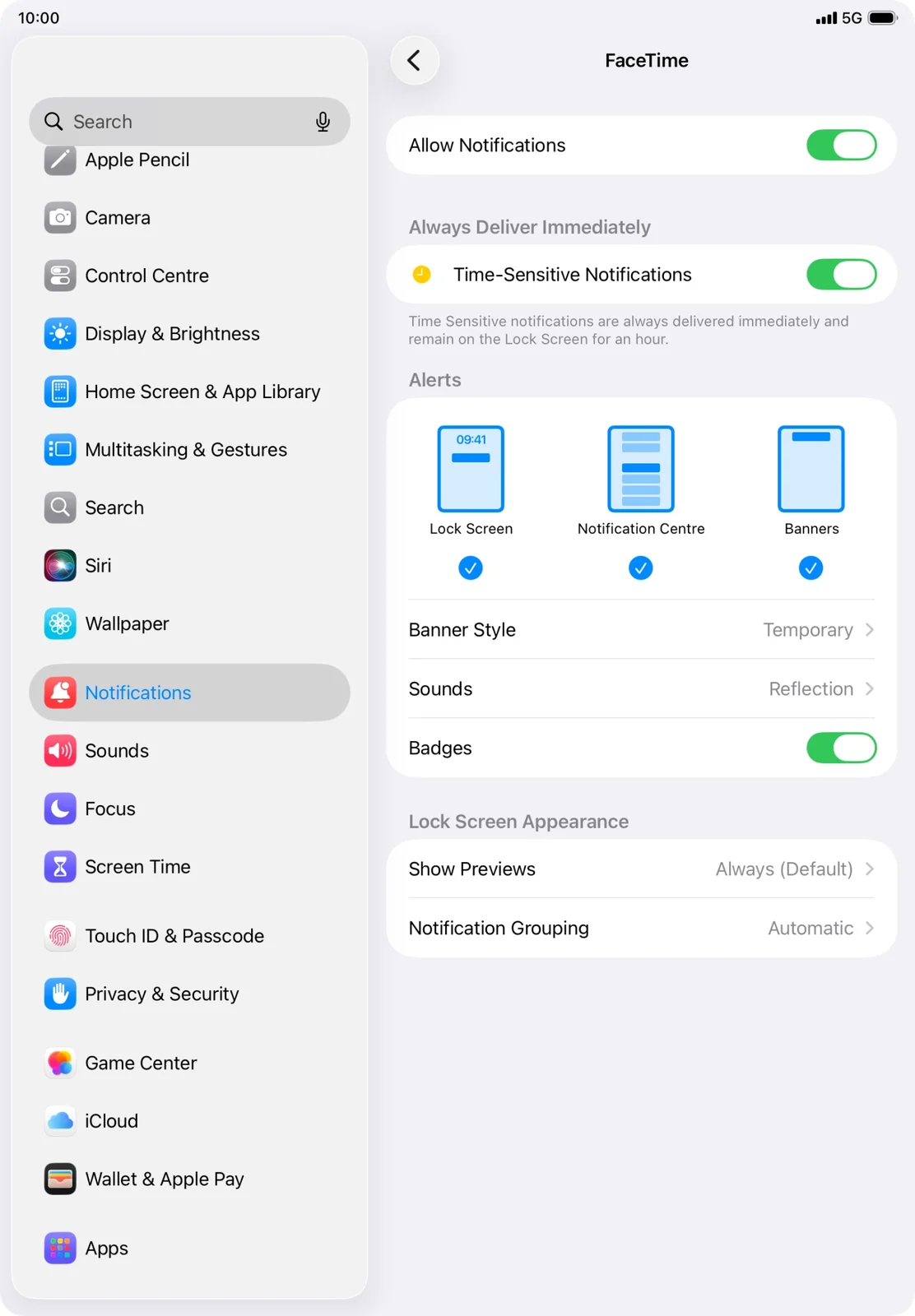
Tap the Allow Notifications switch at the top of the app’s page to turn it off.
The example Allow Notifications switch is still green. A changed Off result is not pictured.
IF SOMETHING LOOKS DIFFERENT
A little help along the way.
Your menus may look different after an update. Look for the same control name and take your time.
I cannot find that option+
Check that this guide covers your device and software. If the names do not match, use the manufacturer’s instructions linked below for your model.
I need to go back a step+
Use Previous step or select a step number above. This changes the guide only; it does not undo anything on your device.
Are these pictures of my device?+
They are example screens showing exactly where to tap. Your names, apps, wallpaper and layout may look a little different, but the options you need are the same. Some pictures show what you should see after a step.