SMALL STEPS. USEFUL SKILLS.
Connect to Wi-Fi
Join a home, work or public wireless network.
Use the pictures where shown. Follow the short instructions between them.
STEP 1 OF 7
Open Settings
Tap the grey Settings icon on your Home Screen.
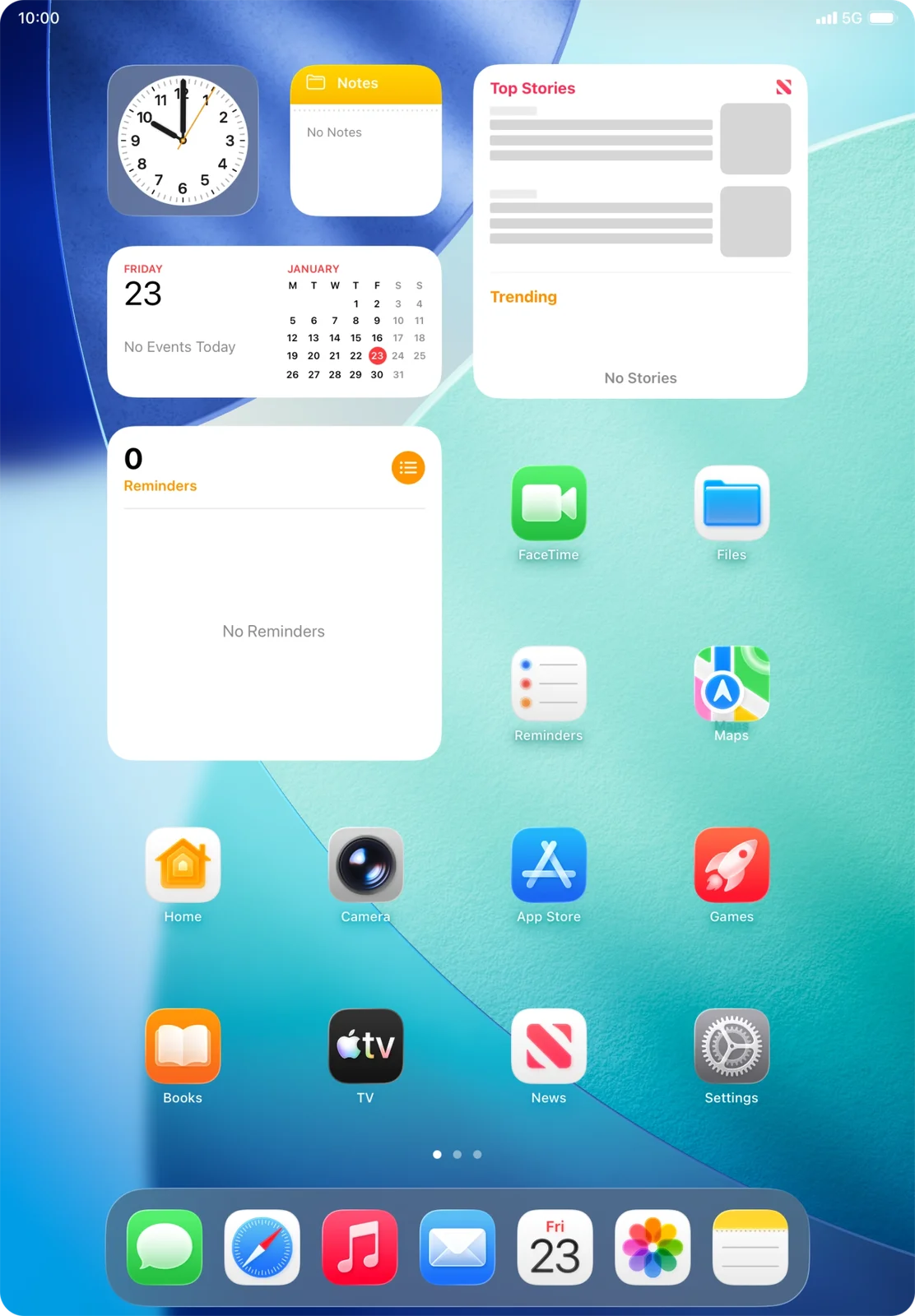
Settings is near the lower-right corner of this example Home Screen.
Prefer to see all the steps together?+
STEP 1
Open Settings
Tap the grey Settings icon on your Home Screen.
Settings is near the lower-right corner of this example Home Screen.
STEP 2
Choose Wi-Fi
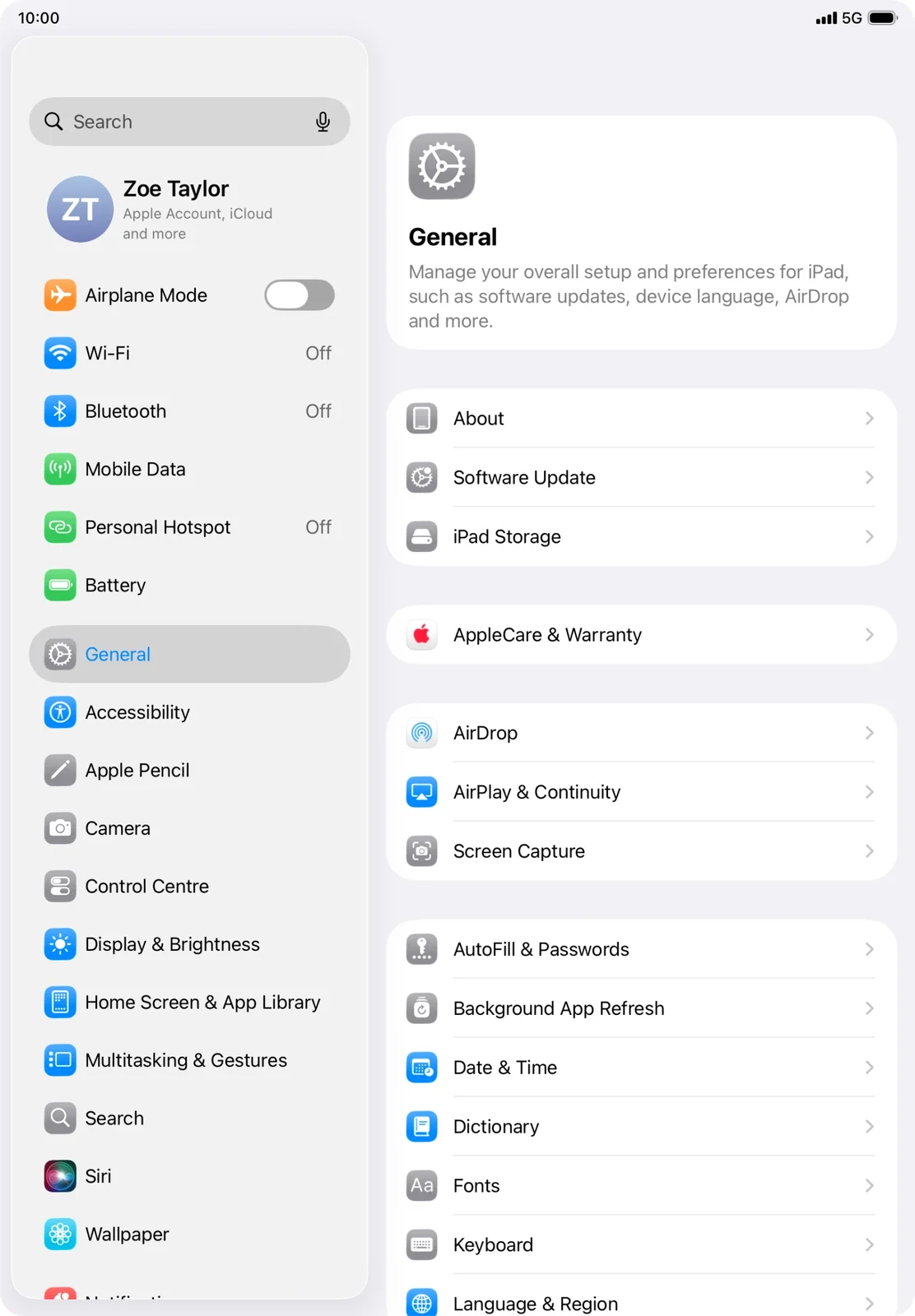
Tap Wi-Fi in the left-hand list.
Settings uses a sidebar on the left and a separate panel on the right.
STEP 3
Turn Wi-Fi on
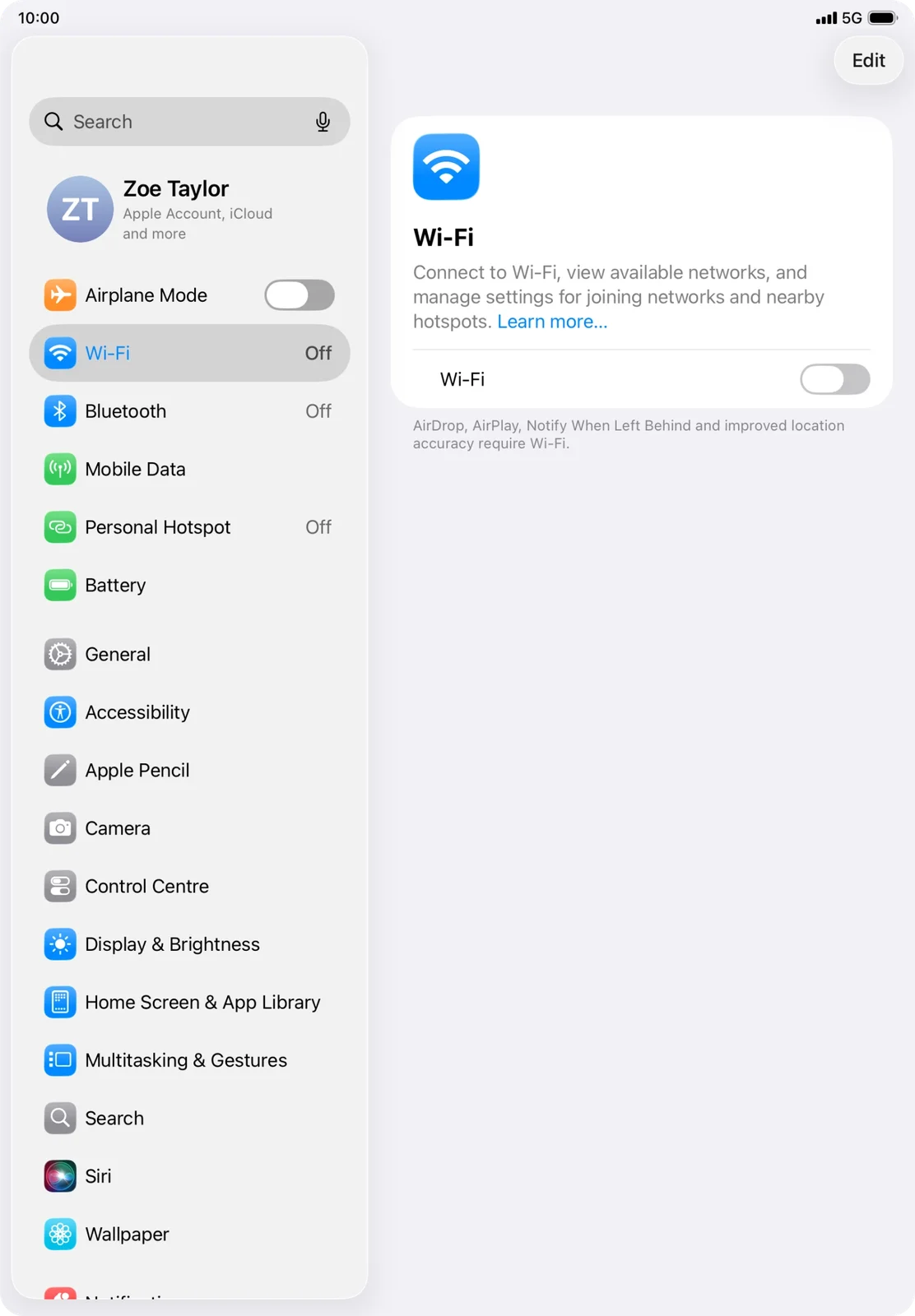
Tap the switch beside Wi-Fi if it is off.
The Wi-Fi switch is grey before you turn it on.
STEP 4
Choose your network
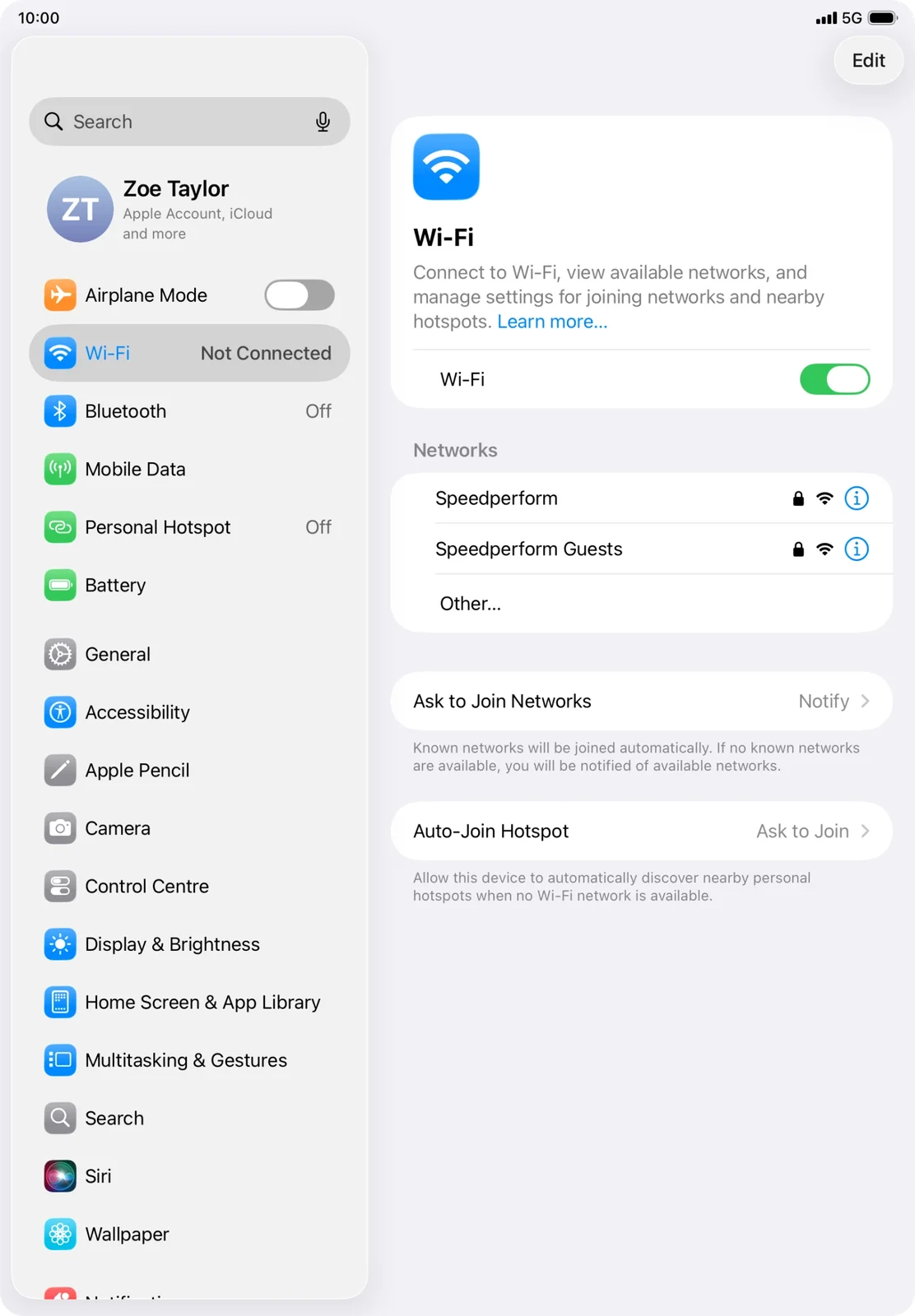
Tap your own network name in the right-hand panel.
The example lists Speedperform and Speedperform Guests. Your names will differ.
STEP 5
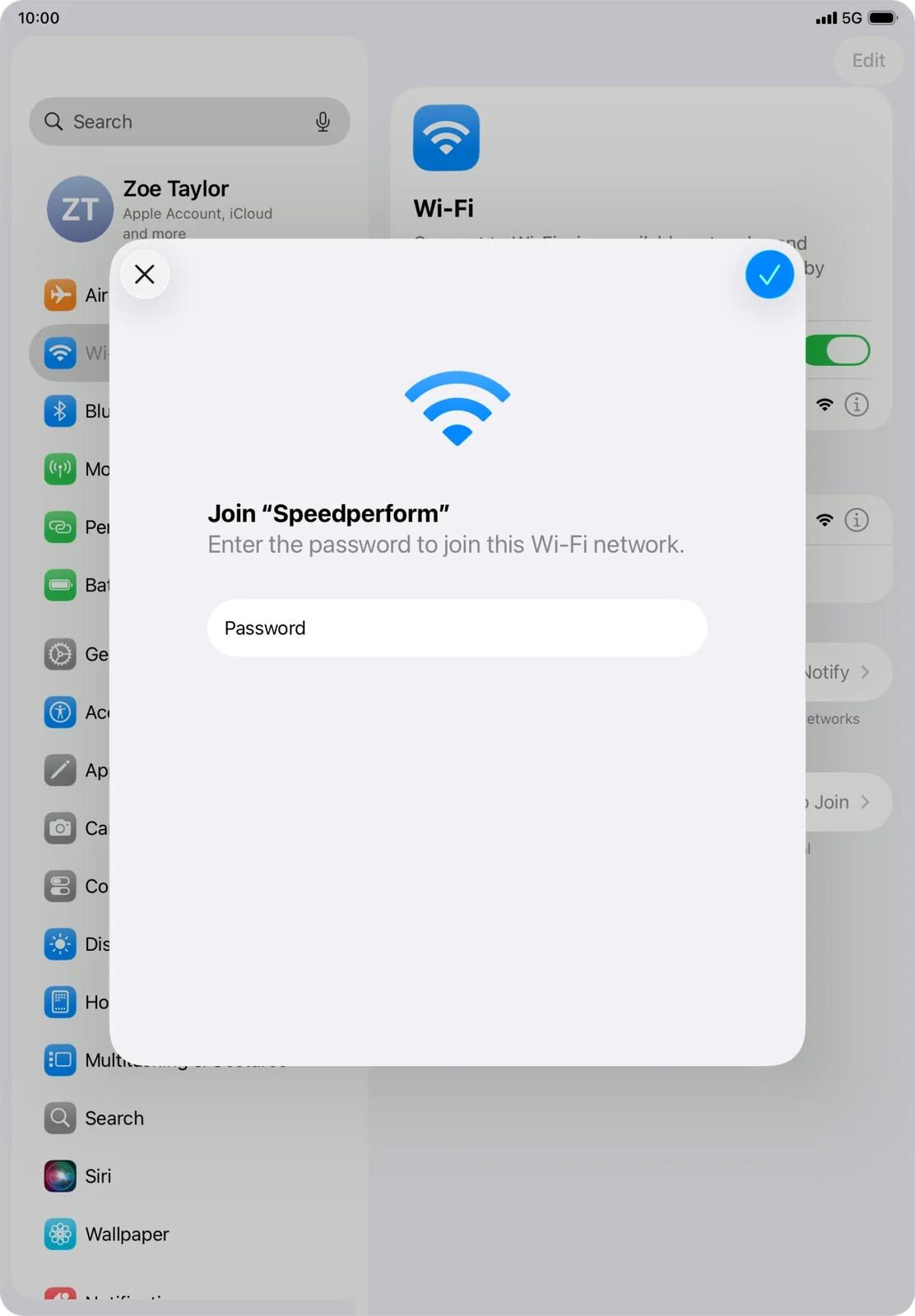
Enter the password
Tap Password and enter the password for your Wi-Fi network.
The Password field is empty in this picture. Enter your own password.
STEP 6
Join the network
After entering the password, tap the blue tick at the top right of the password window.
The blue tick is the join control. This picture still shows an empty password field.
STEP 7
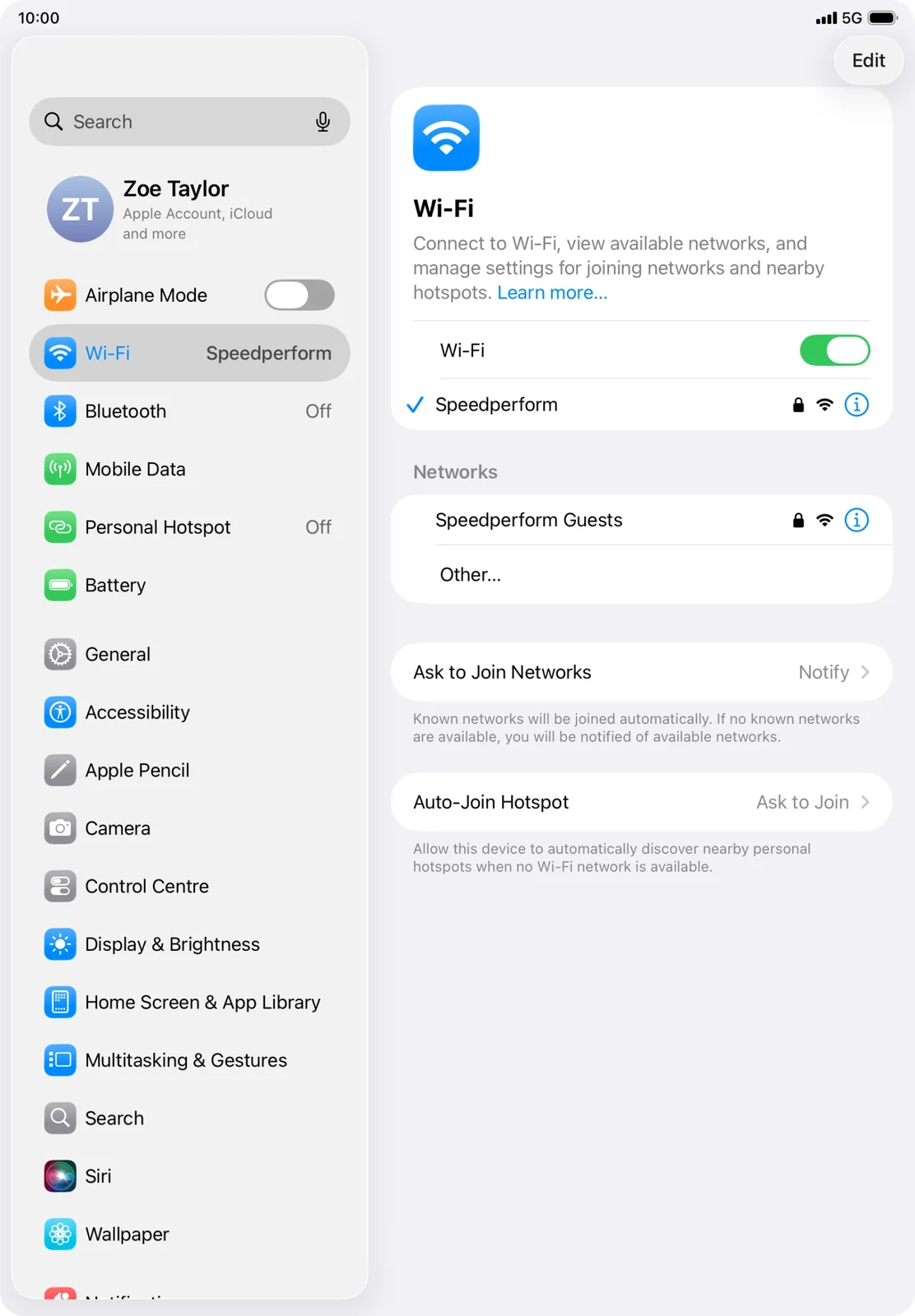
Check you are connected
Look for a tick beside your network name, then try opening a webpage.
A blue tick beside Speedperform shows that the example iPad has joined that network.
IF SOMETHING LOOKS DIFFERENT
A little help along the way.
Your menus may look different after an update. Look for the same control name and take your time.
I cannot find that option+
Check that this guide covers your device and software. If the names do not match, use the manufacturer’s instructions linked below for your model.
I need to go back a step+
Use Previous step or select a step number above. This changes the guide only; it does not undo anything on your device.
Are these pictures of my device?+
They are example screens showing exactly where to tap. Your names, apps, wallpaper and layout may look a little different, but the options you need are the same. Some pictures show what you should see after a step.