SMALL STEPS. USEFUL SKILLS.
Connect Bluetooth headphones
Pair wireless headphones through the correct settings menu.
Use the pictures where shown. Follow the short instructions between them.
STEP 1 OF 7
Put the headphones in pairing mode
Turn the headphones on and hold their pairing button until the light flashes.
A matching screen picture is not available for this step. Follow the instruction above, or open the manufacturer’s guide if your menus differ.
Open OPPO Support guidancePrefer to see all the steps together?+
STEP 1
Put the headphones in pairing mode
Turn the headphones on and hold their pairing button until the light flashes.
STEP 2
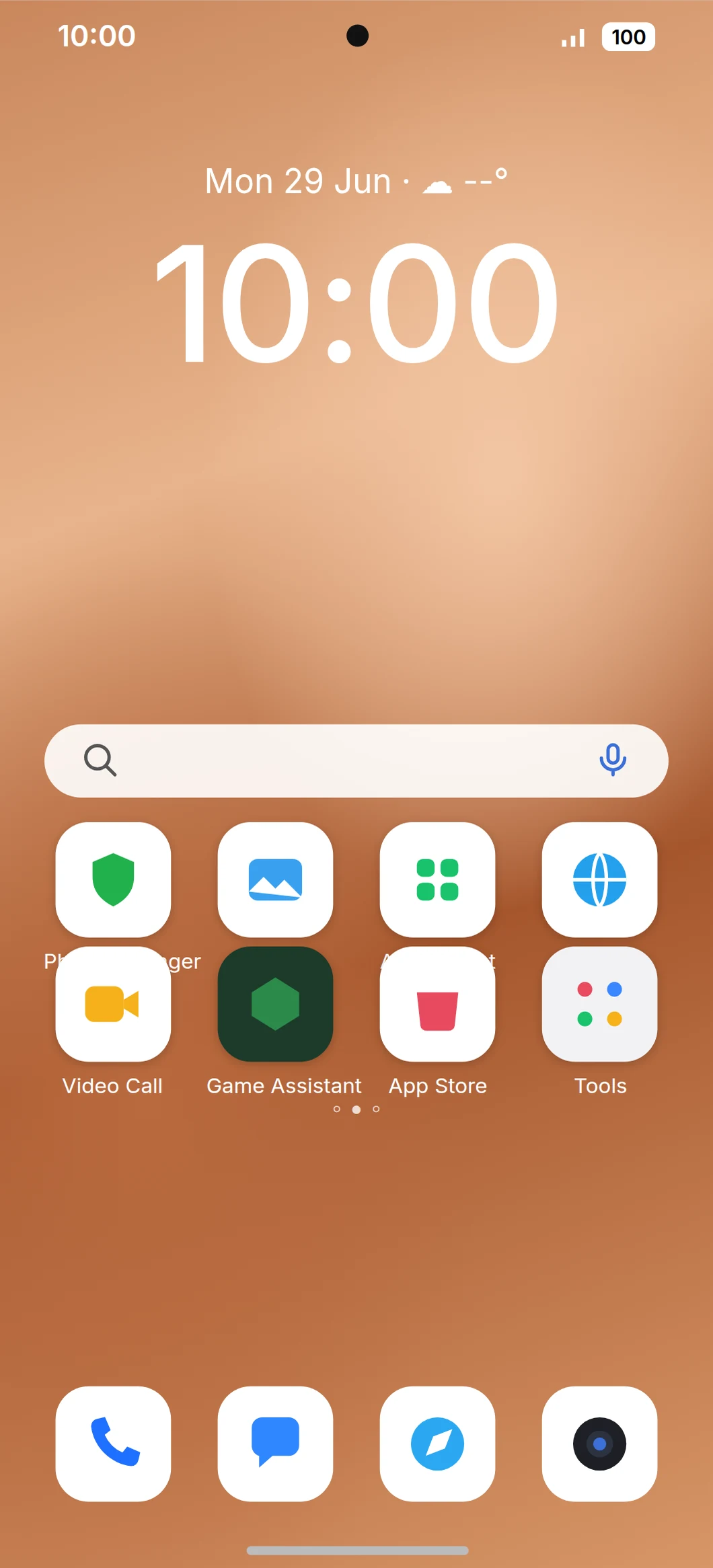
Open the quick settings
Swipe down from the top-right corner of the screen.
STEP 3
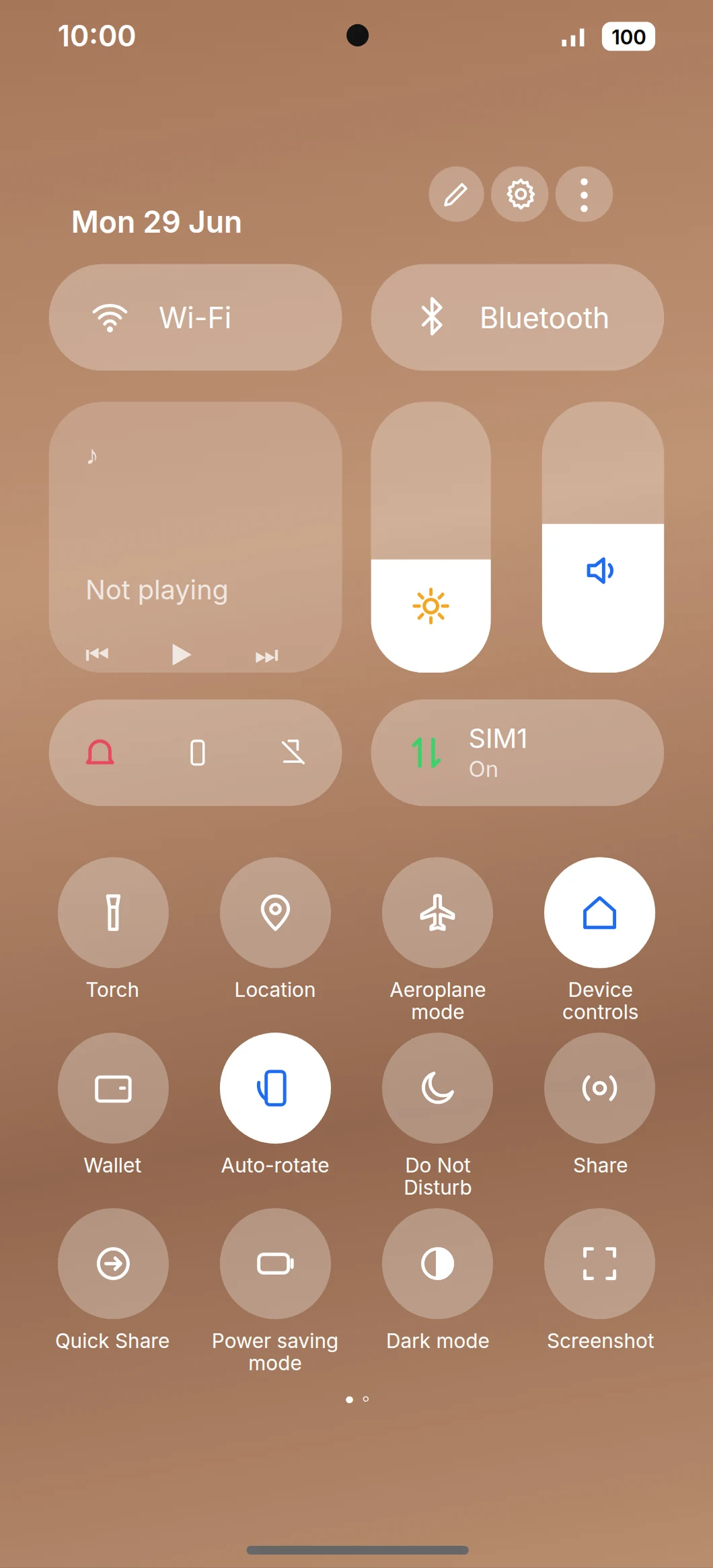
Open Settings
Tap the Settings cog at the top of the panel.
STEP 4
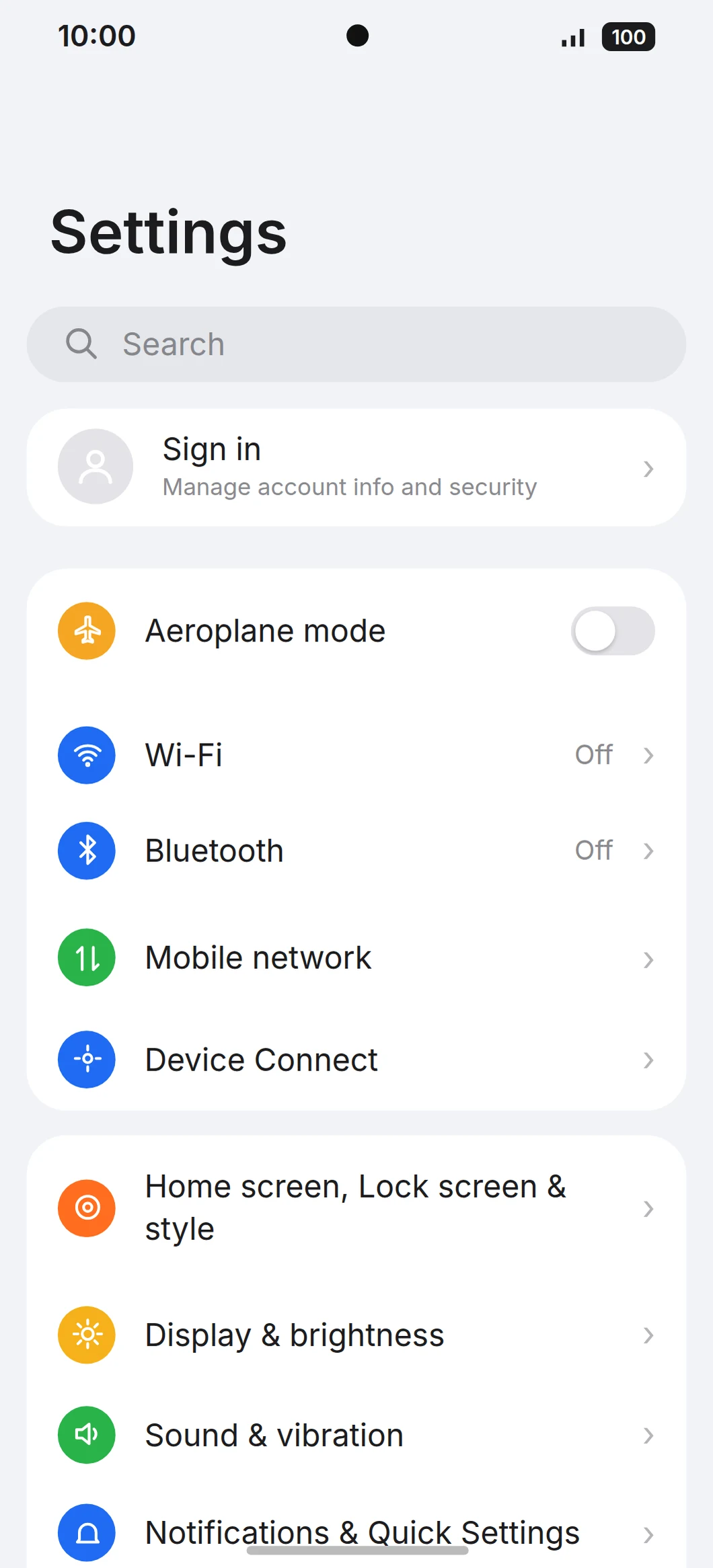
Tap Bluetooth
STEP 5
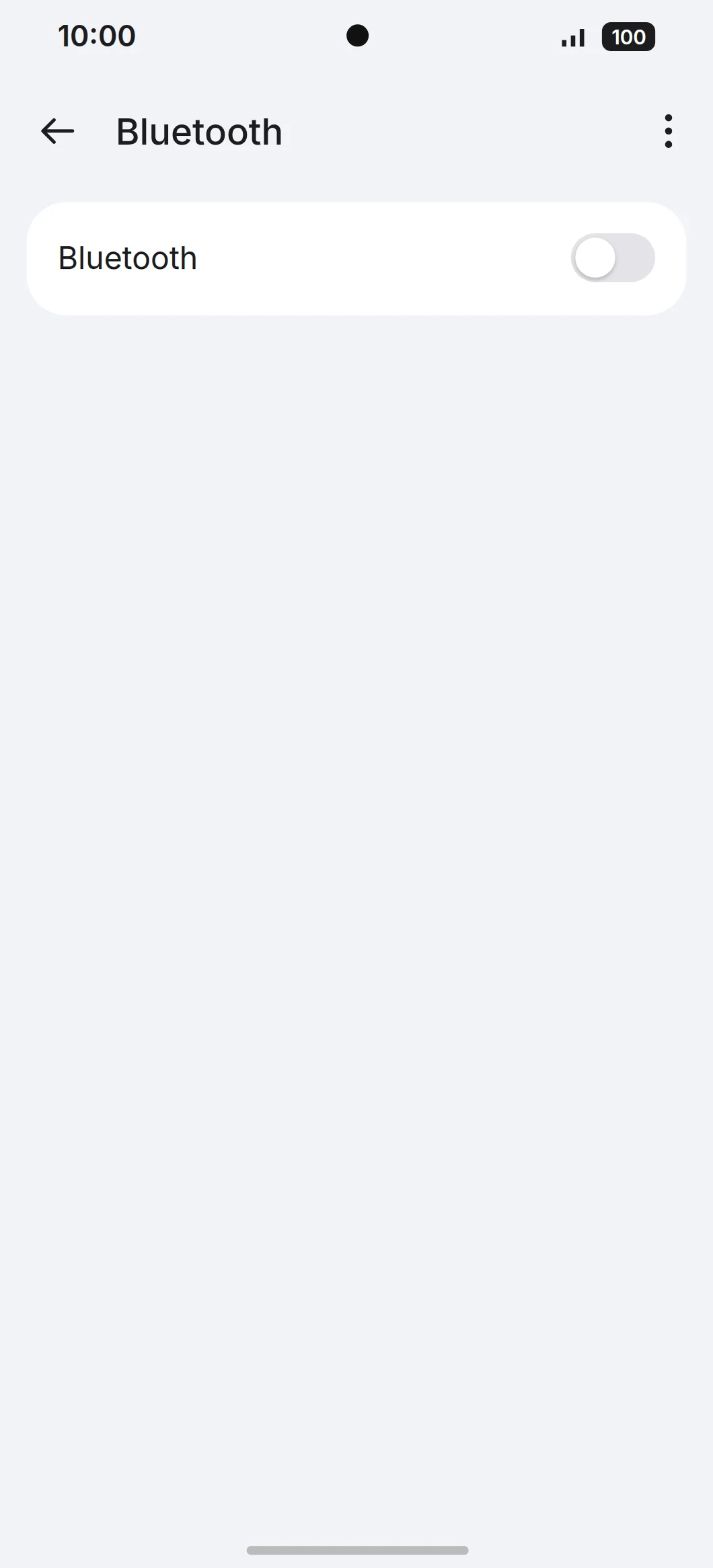
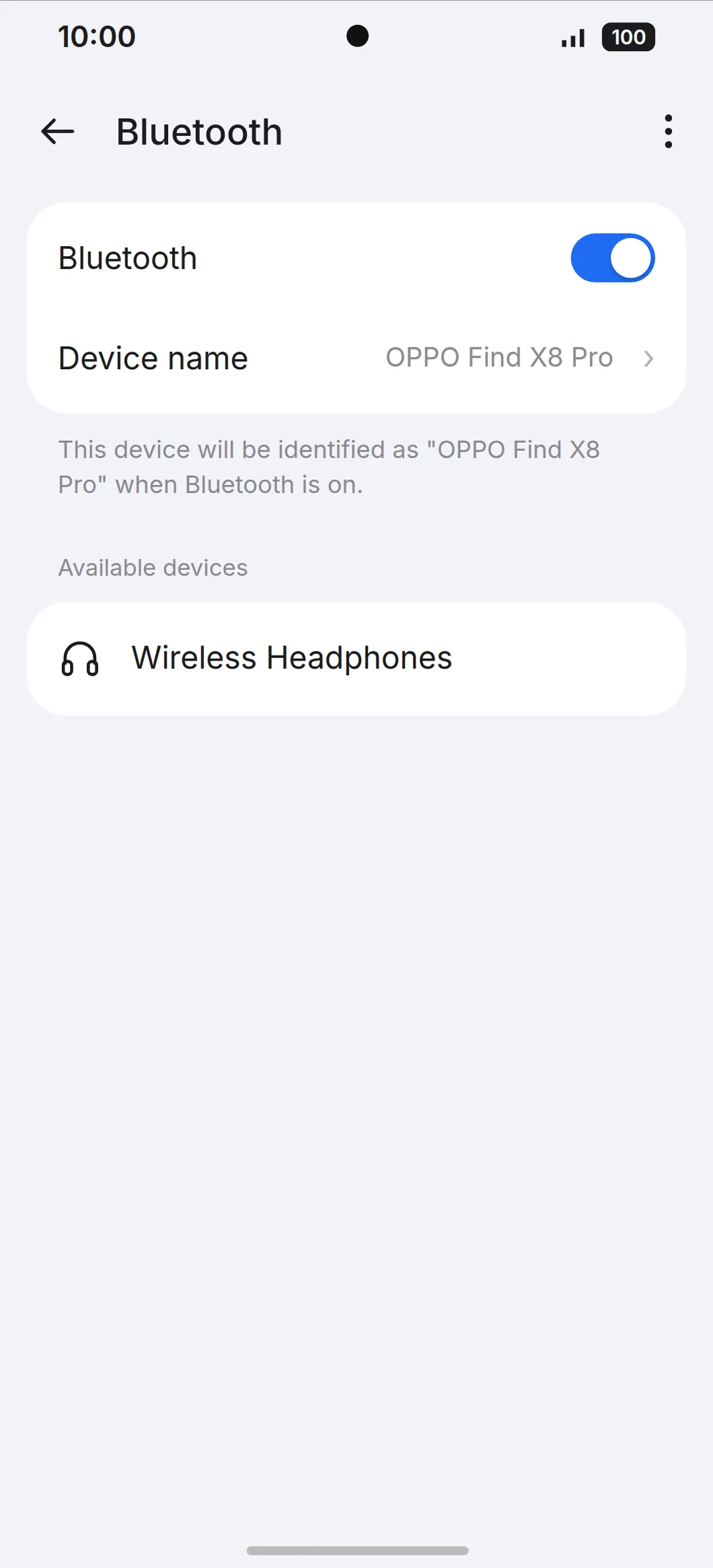
Turn Bluetooth on
If the Bluetooth switch is off, tap it so it turns blue.
STEP 6
Choose your headphones
Under Available devices, tap the name of your headphones.
The device name shown is an example.
STEP 7
Accept the pairing
Follow any message on screen to finish pairing.
IF SOMETHING LOOKS DIFFERENT
A little help along the way.
Your menus may look different after an update. Look for the same control name and take your time.
I cannot find that option+
Check that this guide covers your device and software. If the names do not match, use the manufacturer’s instructions linked below for your model.
I need to go back a step+
Use Previous step or select a step number above. This changes the guide only; it does not undo anything on your device.
Are these pictures of my device?+
They are example screens showing exactly where to tap. Your names, apps, wallpaper and layout may look a little different, but the options you need are the same. Some pictures show what you should see after a step.