SMALL STEPS. USEFUL SKILLS.
Free up storage space
Find out what is using space and remove what you no longer need.
Use the pictures where shown. Follow the short instructions between them.
STEP 1 OF 5
Open Settings
On your Home Screen, tap the grey Settings icon (it looks like a set of cogs).
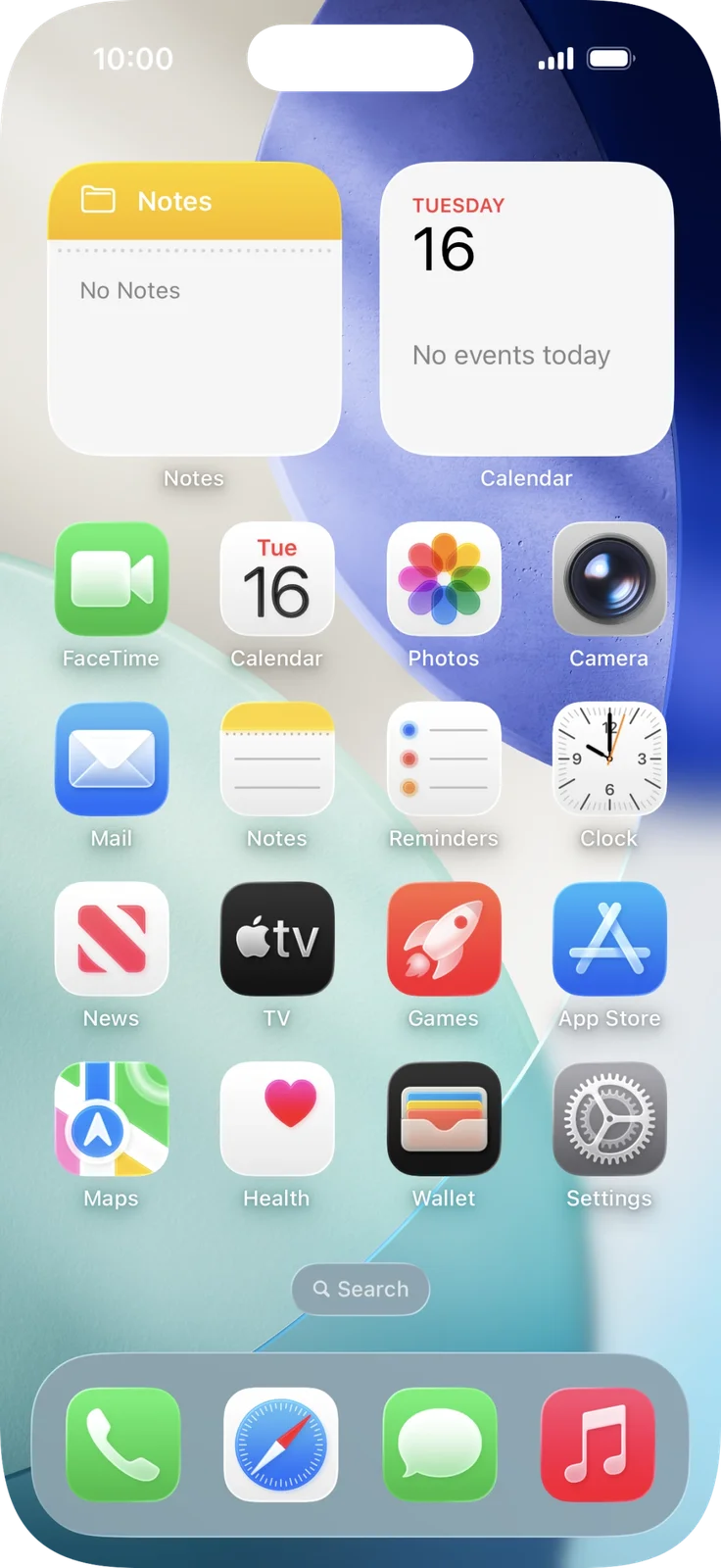
Settings may be in a different place on your Home Screen. If you can't see it, swipe down in the middle of the screen and type Settings.
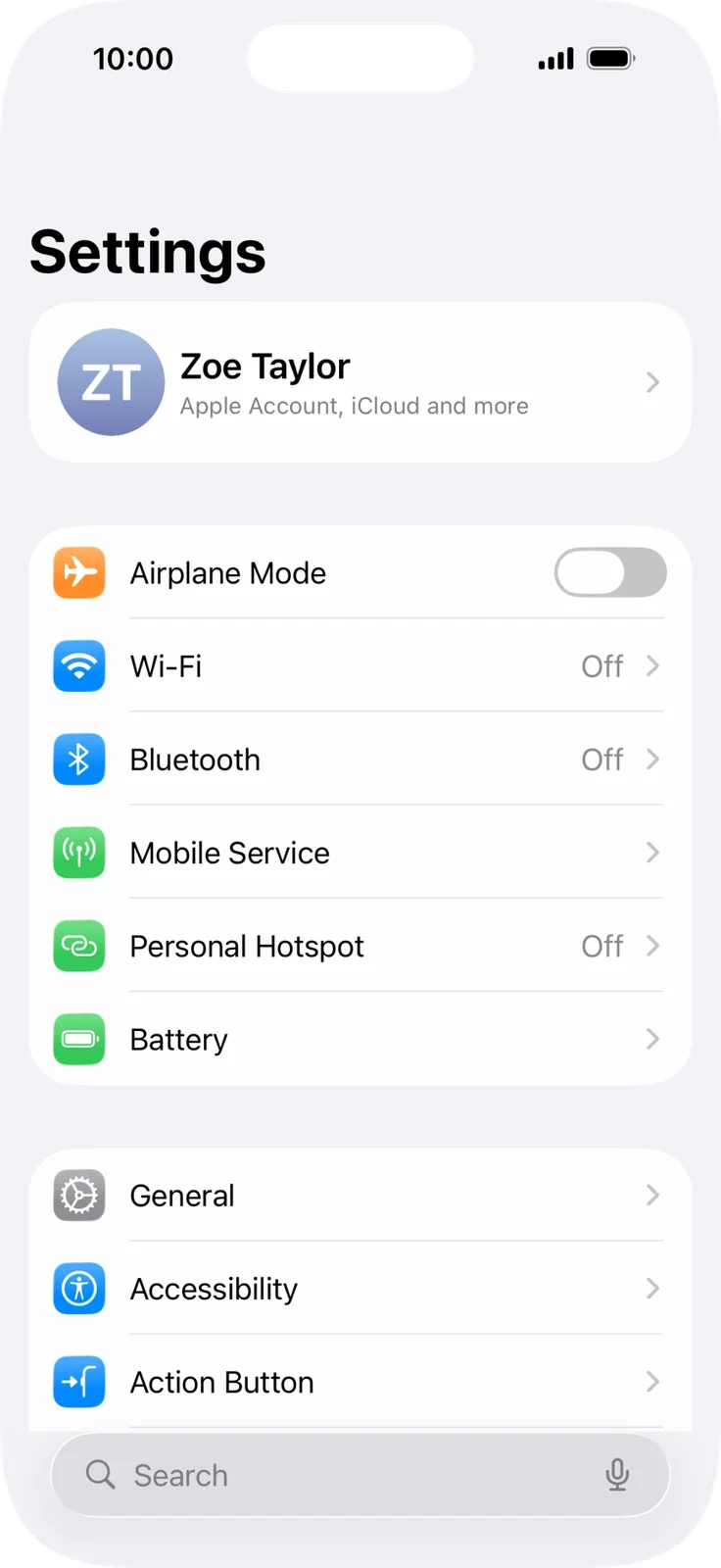
The Settings list opens, with your name at the top.
Prefer to see all the steps together?+
STEP 1
Open Settings
On your Home Screen, tap the grey Settings icon (it looks like a set of cogs).
Settings may be in a different place on your Home Screen. If you can't see it, swipe down in the middle of the screen and type Settings.
STEP 2
Tap General
Scroll down a little and tap General (the grey cog icon).
Zoe Taylor is an example name. Your own name appears at the top.
STEP 3
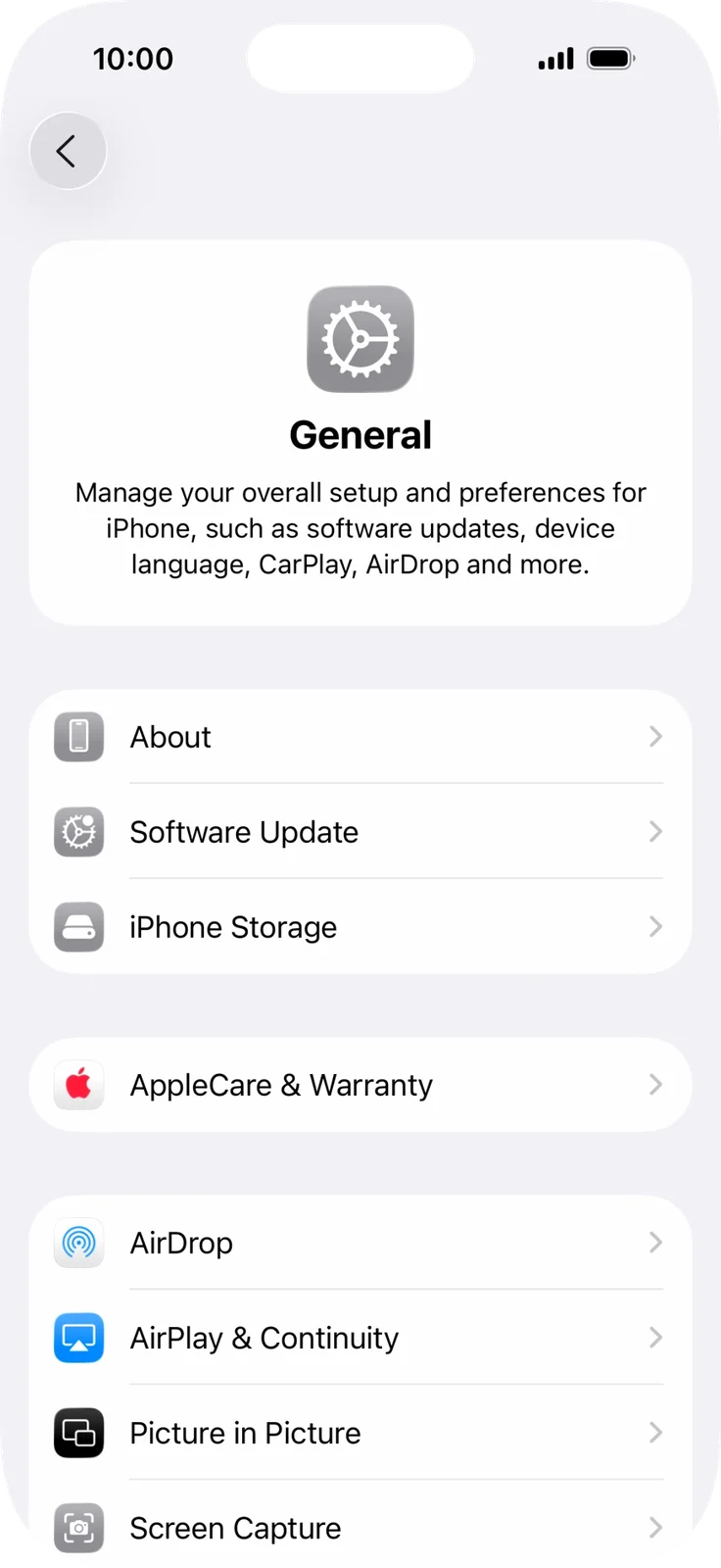
Tap iPhone Storage
Tap iPhone Storage, just below Software Update.
STEP 4
See what is using space
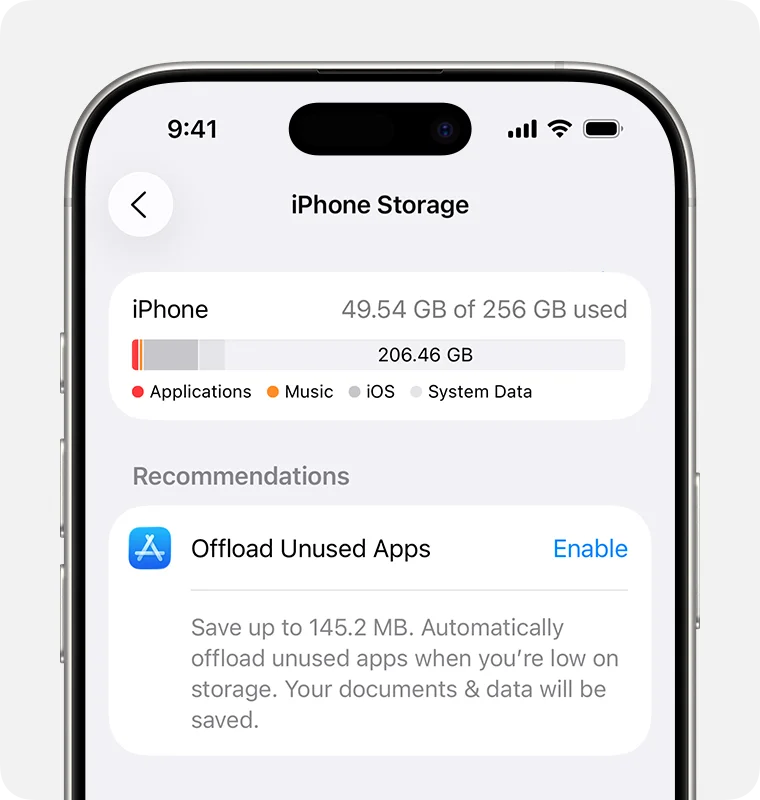
Wait a few seconds for the coloured bar at the top to fill in. It shows how much space is used and what kind of things are using it.
Tap any app in the list to see how much space it uses and to offload or delete it on its own.
Scroll further down this page to see every app, with the largest at the top. That list is not shown in this picture.
STEP 5
Turn on Offload Unused Apps
Under Recommendations, tap the blue word Enable next to Offload Unused Apps.
Offloading removes apps you haven't used for a while but keeps your documents and data. The app icon stays on your Home Screen; tap it to download the app again.
You may see different suggestions, such as Review Large Attachments. Follow any that suit you.
IF SOMETHING LOOKS DIFFERENT
A little help along the way.
Your menus may look different after an update. Look for the same control name and take your time.
I cannot find that option+
Check that this guide covers your device and software. If the names do not match, use the manufacturer’s instructions linked below for your model.
I need to go back a step+
Use Previous step or select a step number above. This changes the guide only; it does not undo anything on your device.
Are these pictures of my device?+
They are example screens showing exactly where to tap. Your names, apps, wallpaper and layout may look a little different, but the options you need are the same. Some pictures show what you should see after a step.