SMALL STEPS. USEFUL SKILLS.
Send a text message
Start a new conversation and send your first message.
Follow the numbered box on each iPhone screen.
STEP 1 OF 4
Open Messages.
Tap the green Messages icon with the white speech bubble.
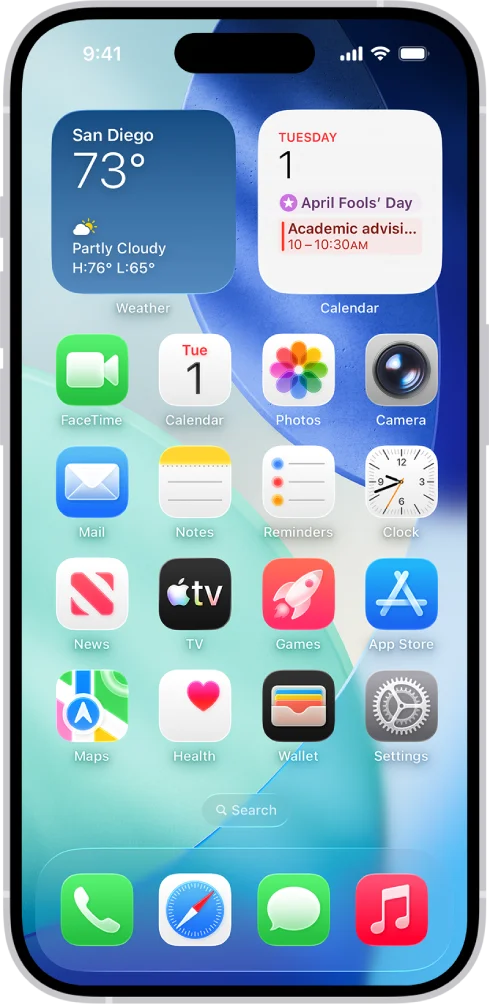
Match the highlighted icon. Your apps may be arranged differently.
Your conversations open in Messages.
Need a little more help?+
Your wallpaper and icon positions may be different. Look for the speech bubble rather than relying only on its position.
Prefer to see all the steps together?+
STEP 1
Open Messages.
Tap the green Messages icon with the white speech bubble.
Your wallpaper and icon positions may be different. Look for the speech bubble rather than relying only on its position.
Match the highlighted icon. Your apps may be arranged differently.
STEP 2
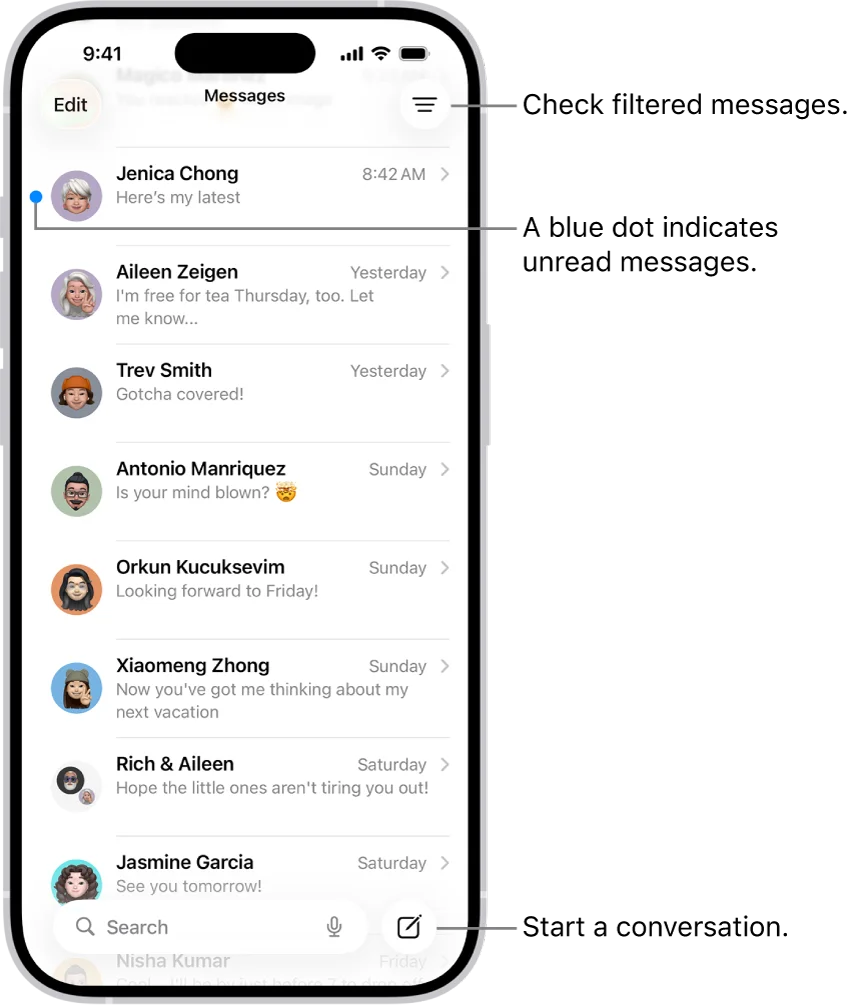
Start a new message.
Tap the square-and-pencil button at the bottom right.
Your list will contain your own conversations. The names shown here are examples.
The button stays at the bottom right even when your conversations are different.
STEP 3
Choose who you want to message.
Tap To and enter the person’s name or phone number. Choose the correct person.
A saved contact can be selected by name. Otherwise, enter their phone number carefully.
This example shows several recipients. Enter just one for a private message.
STEP 4
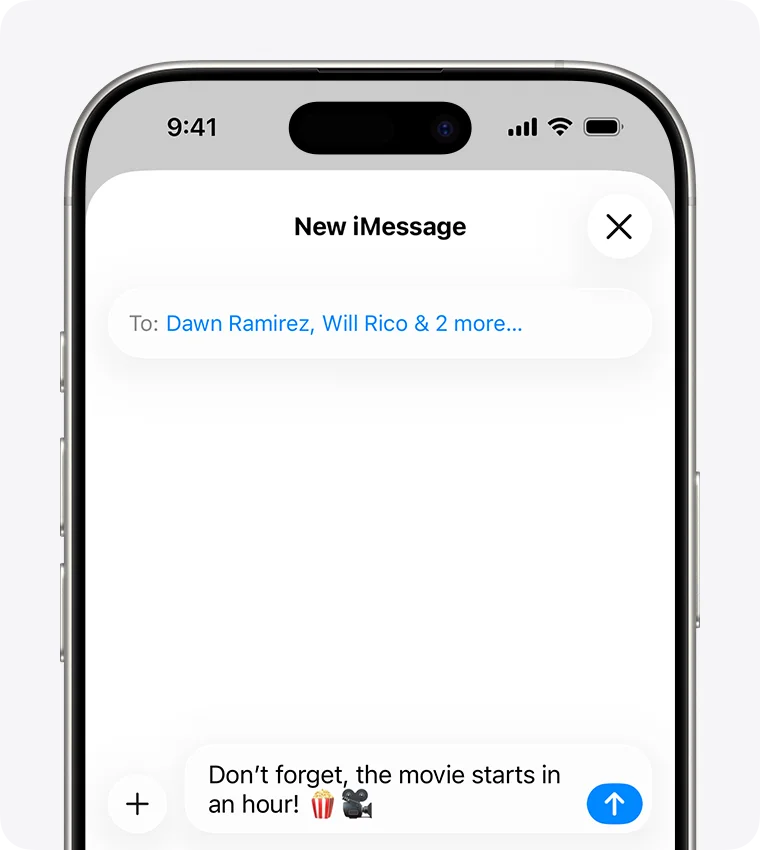
Write your message, then send.
Tap the message box and type your words. Check the recipient, then tap the upward arrow.
Blue bubbles use iMessage; green bubbles use RCS, SMS or MMS. Either colour can be normal.
Use your own recipient and words. The blue arrow appears once there is a message to send.
IF SOMETHING LOOKS DIFFERENT
A little help along the way.
Your menus may look different after an update. Look for the same control name and take your time.
I cannot find that option+
Check that this guide covers your device and software. If the names do not match, use the manufacturer’s instructions linked below for your model.
I need to go back a step+
Use Previous step or select a step number above. This changes the guide only; it does not undo anything on your device.
Are these pictures of my device?+
They are example iPhone screens, with numbered highlights showing where to tap. Your names, messages and wallpaper will differ.