SMALL STEPS. USEFUL SKILLS.
Change your wallpaper
Set a new picture for the lock screen and home screen.
Use the pictures where shown. Follow the short instructions between them.
STEP 1 OF 6
Open the wallpaper choices
Touch and hold an empty part of the Lock Screen until the wallpaper choices appear.
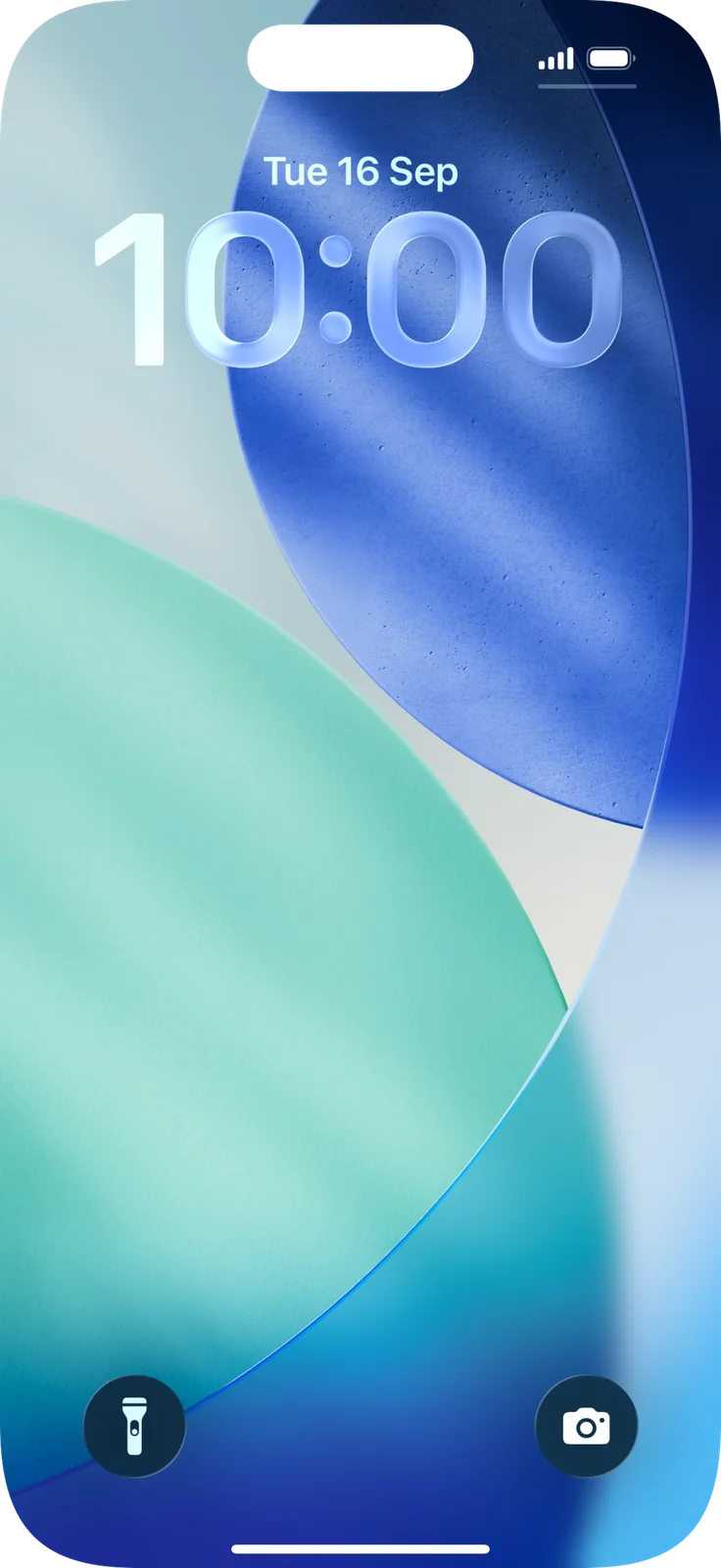
Start on the screen with the large clock, rather than the Home Screen with app icons.
Prefer to see all the steps together?+
STEP 1
Open the wallpaper choices
Touch and hold an empty part of the Lock Screen until the wallpaper choices appear.
Start on the screen with the large clock, rather than the Home Screen with app icons.
STEP 2
Add a wallpaper
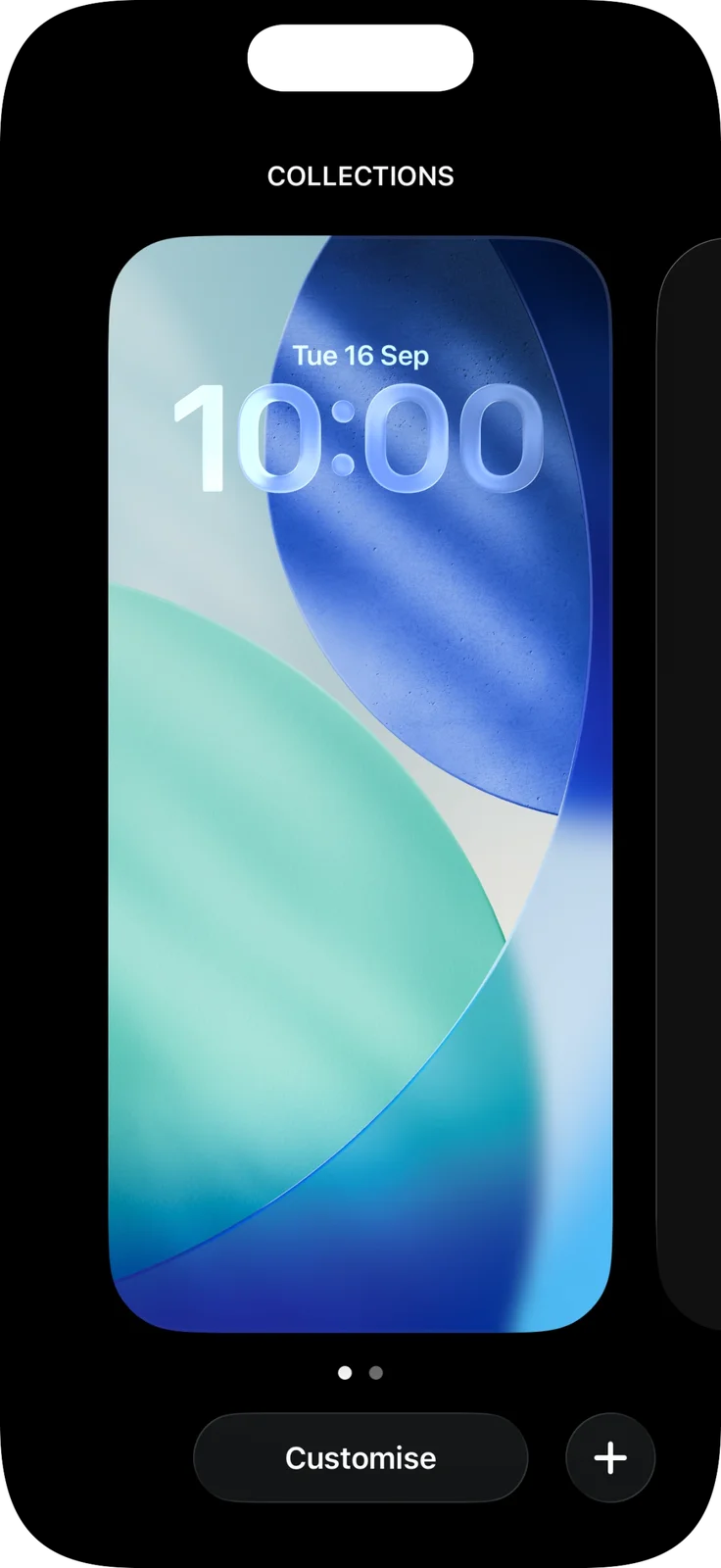
Tap the plus button at the bottom right.
The plus creates another wallpaper. Customise changes the existing one.
STEP 3
Choose a design
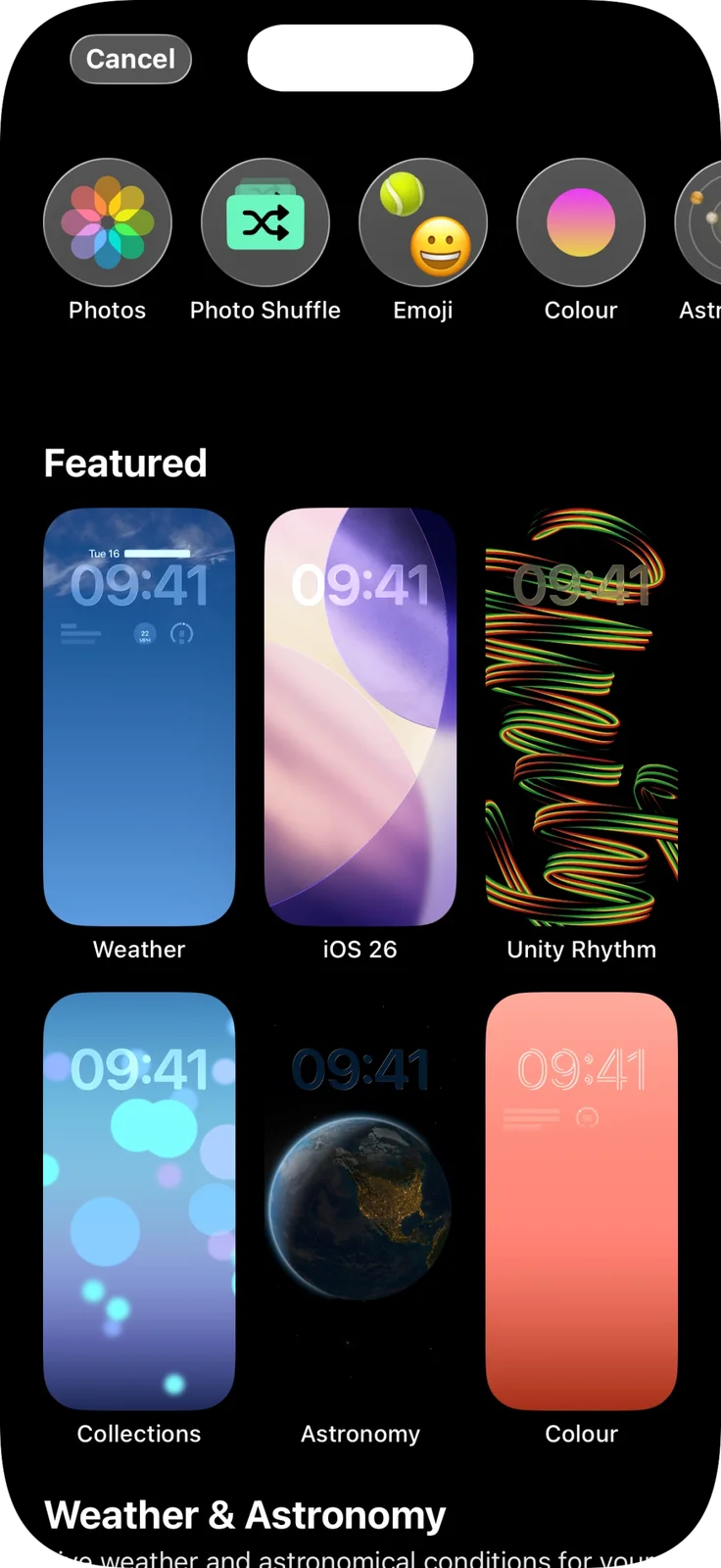
Tap a ready-made wallpaper you like. The next picture uses Weather as an example.
This gallery contains different designs and categories. Its selection may change with software updates.
STEP 4
Check the preview
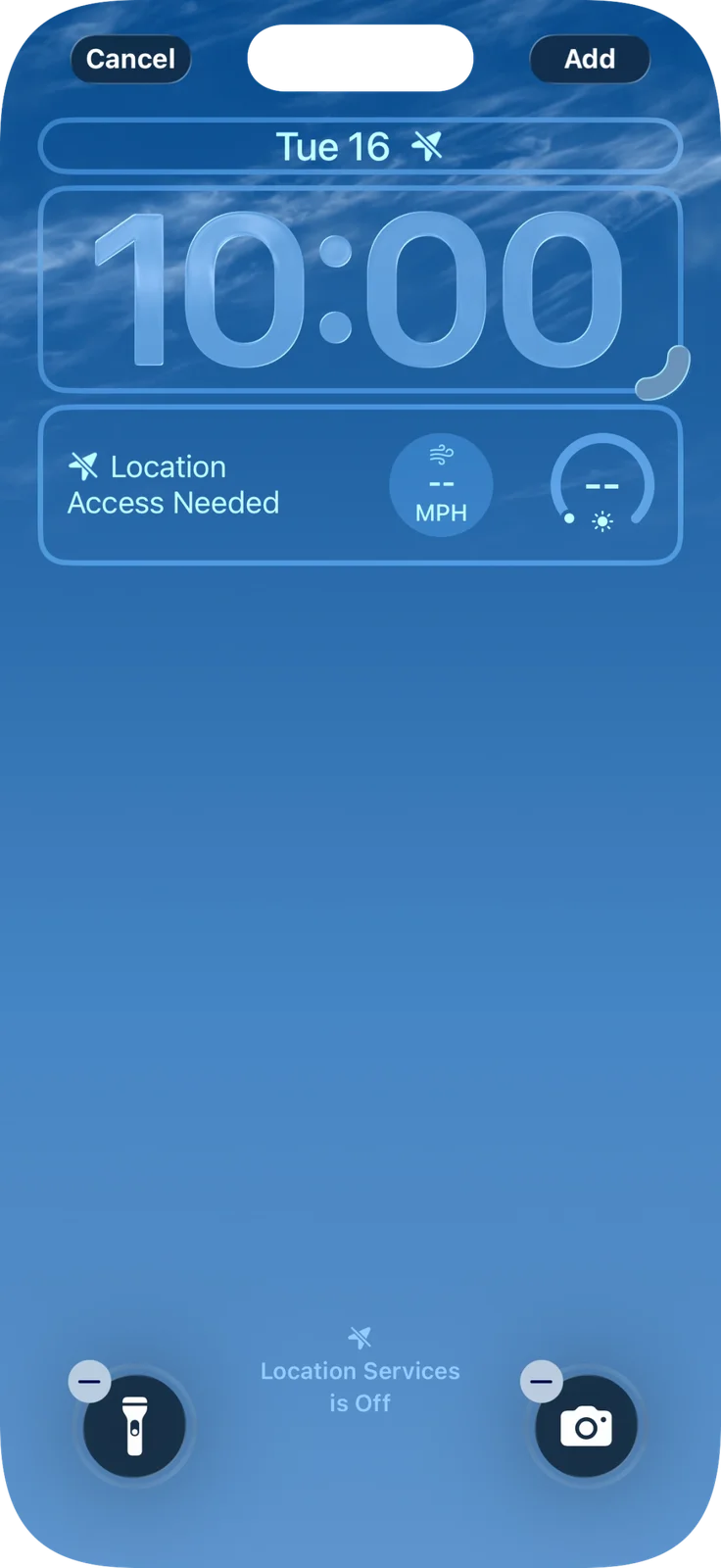
Check that you like the design, then tap Add at the top right.
Weather is the example preview. Location Access Needed refers to live weather information, not a failed wallpaper save. You can choose a different design without turning location access on.
STEP 5
Use it on both screens
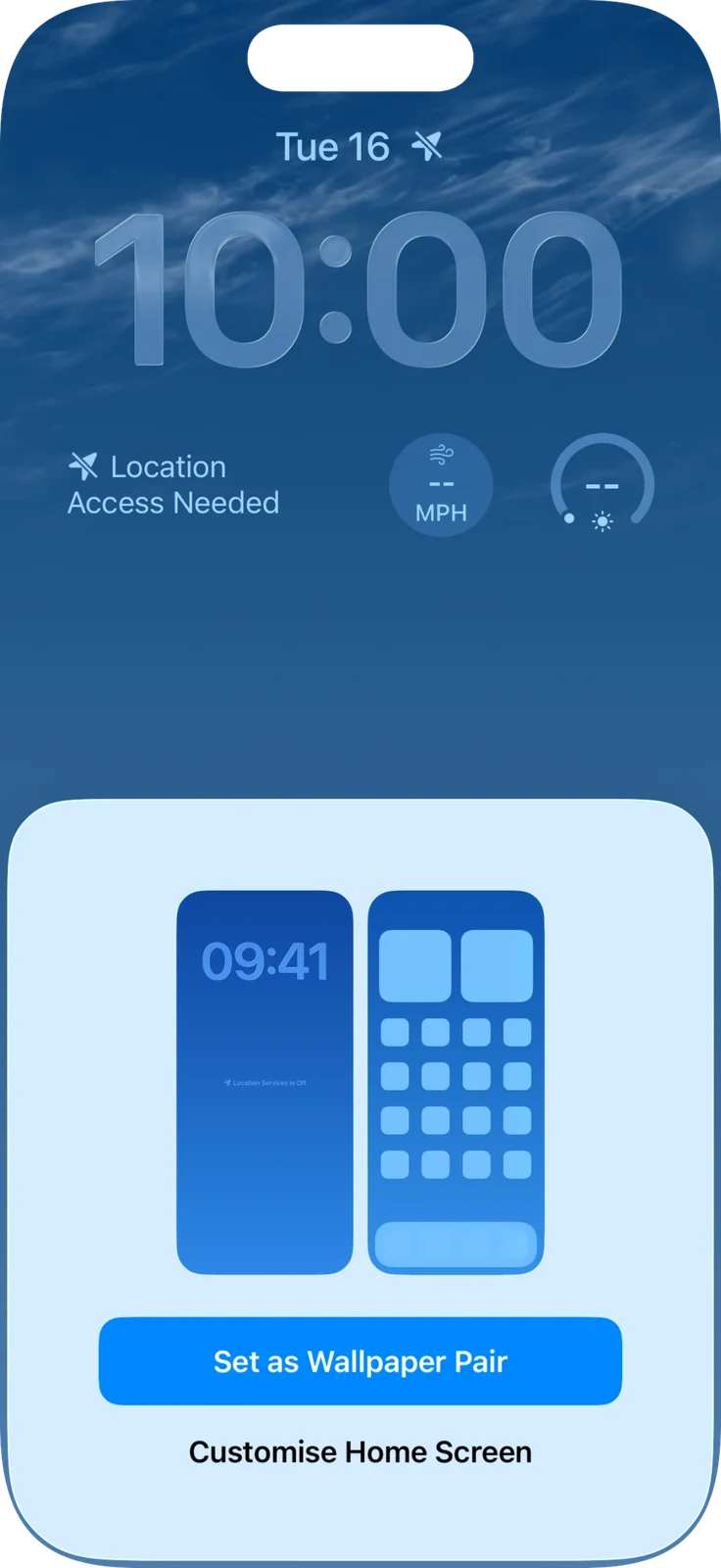
Tap Set as Wallpaper Pair to use a matching look on the Lock Screen and Home Screen.
Set as Wallpaper Pair is the blue button. Customise Home Screen opens additional choices that this walkthrough does not picture.
STEP 6
Select your saved wallpaper
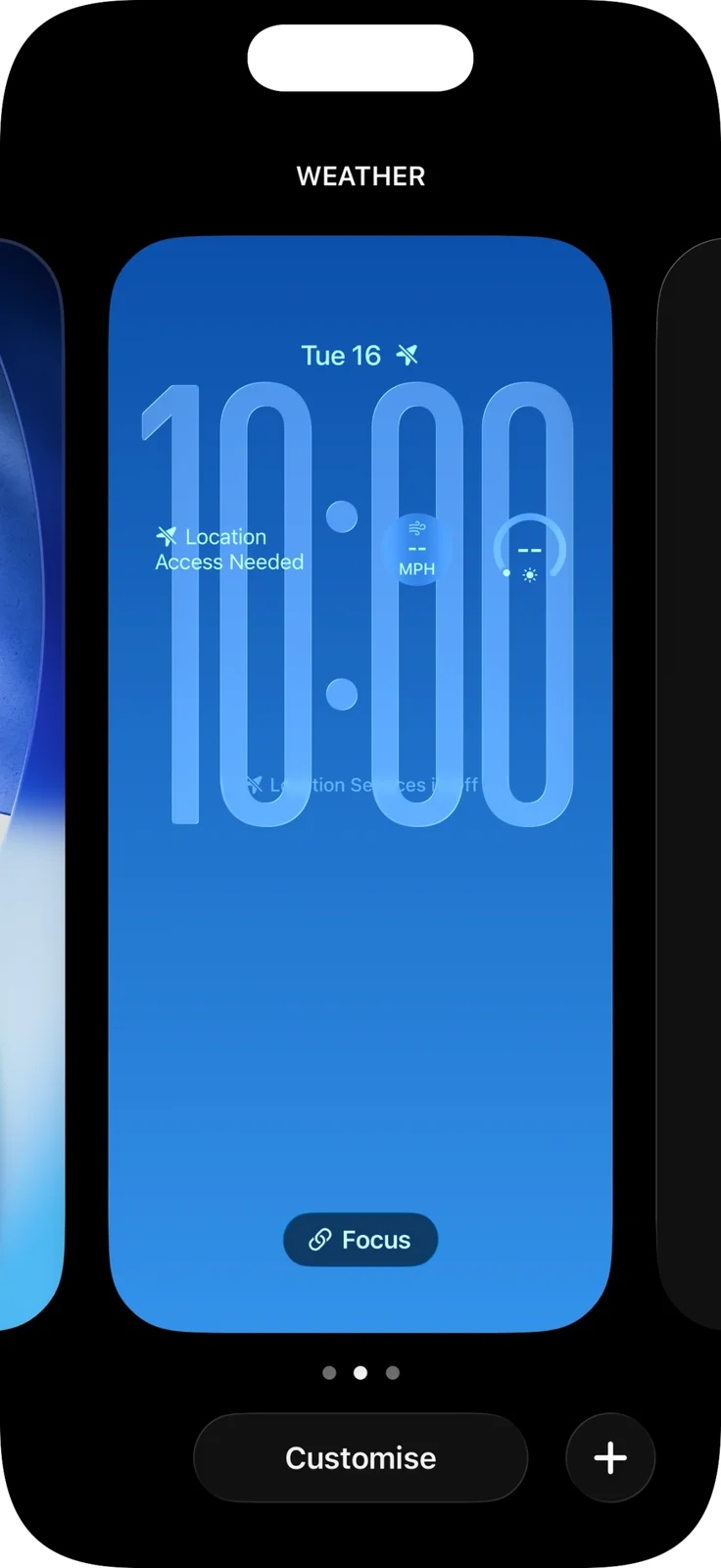
If the wallpaper choices remain open, tap the large new wallpaper preview to use it.
The new Weather wallpaper is saved in the chooser. This example also has a larger clock; your clock can stay at its existing size. There is no need to link a Focus mode.
IF SOMETHING LOOKS DIFFERENT
A little help along the way.
Your menus may look different after an update. Look for the same control name and take your time.
I cannot find that option+
Check that this guide covers your device and software. If the names do not match, use the manufacturer’s instructions linked below for your model.
I need to go back a step+
Use Previous step or select a step number above. This changes the guide only; it does not undo anything on your device.
Are these pictures of my device?+
They are example screens showing exactly where to tap. Your names, apps, wallpaper and layout may look a little different, but the options you need are the same. Some pictures show what you should see after a step.