SMALL STEPS. USEFUL SKILLS.
Scan a QR code
Open the safe link hidden inside a square QR code.
Use the pictures where shown. Follow the short instructions between them.
STEP 1 OF 4
Open Camera
Tap the Camera app. Use the normal Photo mode.
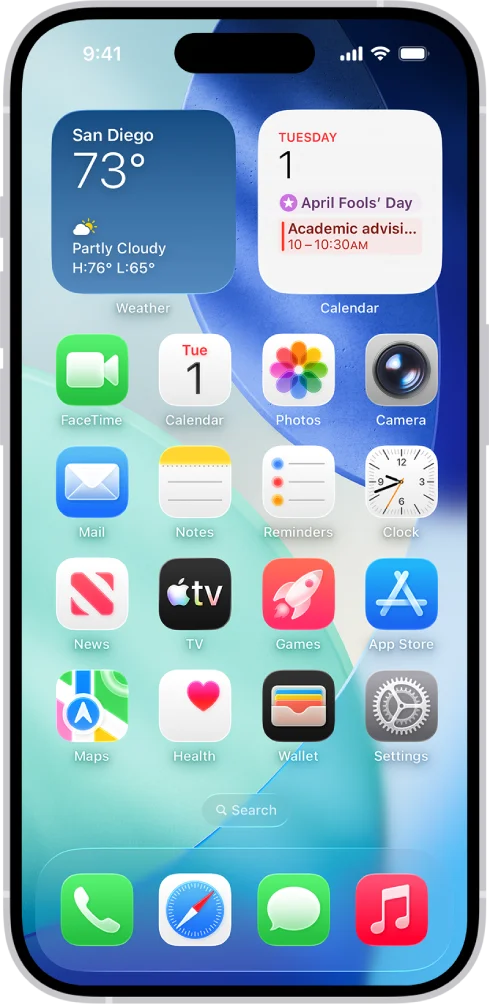
Your wallpaper and app positions may differ. Match the highlighted app icon and name.
Prefer to see all the steps together?+
STEP 1
Open Camera
Tap the Camera app. Use the normal Photo mode.
Your wallpaper and app positions may differ. Match the highlighted app icon and name.
STEP 2
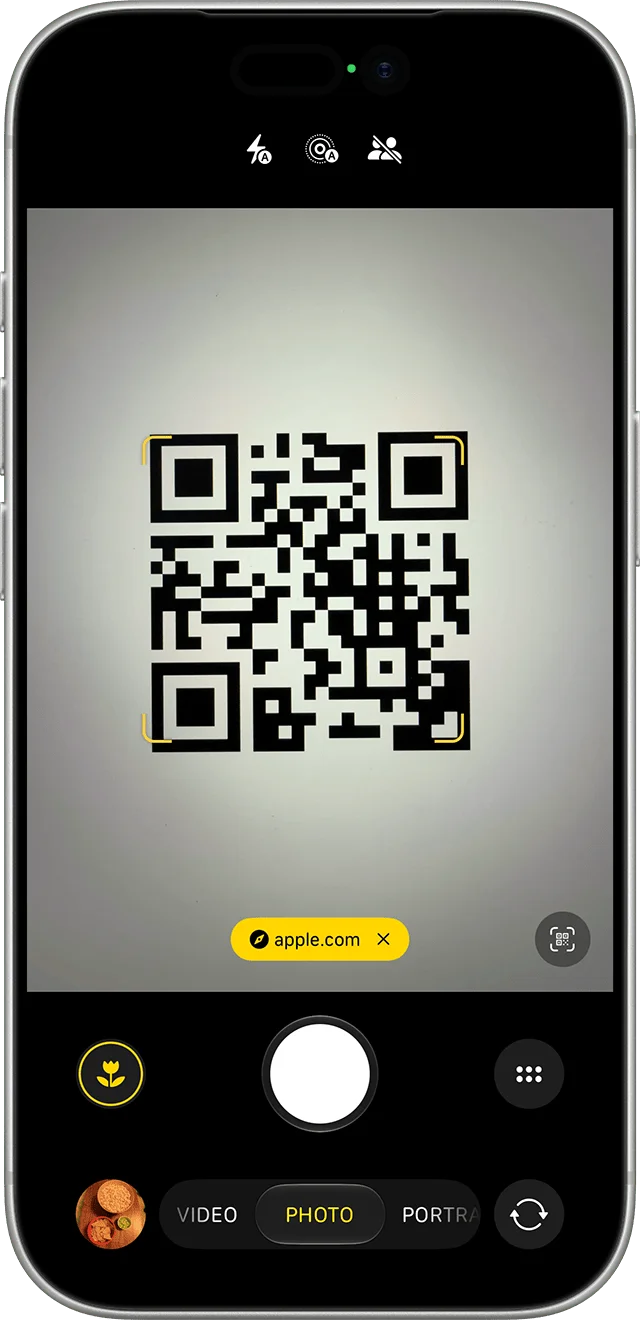
Point at the code
Hold the phone steady so the whole square QR code is inside the camera view. You do not need to take a photograph.
STEP 3
Check the link
Wait for a web address or message to appear. Read the website name before opening it.
This example shows apple.com. Only open links you recognise and trust.
STEP 4
Open it
Tap the yellow web-address button to open the page.
IF SOMETHING LOOKS DIFFERENT
A little help along the way.
Your menus may look different after an update. Look for the same control name and take your time.
I cannot find that option+
Check that this guide covers your device and software. If the names do not match, use the manufacturer’s instructions linked below for your model.
I need to go back a step+
Use Previous step or select a step number above. This changes the guide only; it does not undo anything on your device.
Are these pictures of my device?+
They are example screens showing exactly where to tap. Your names, apps, wallpaper and layout may look a little different, but the options you need are the same. Some pictures show what you should see after a step.