SMALL STEPS. USEFUL SKILLS.
Keep a picture of your screen.
Save a recipe, an important detail or something you want help with. Let’s take a screenshot on your Windows PC.
STEP 1 OF 5
First, open Snipping Tool.
Open Start, type Snipping Tool, then select the app. Look for this window.
- 1Open Start
- 2Type Snipping Tool
- 3Open the app
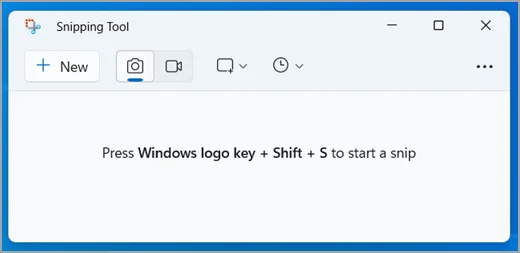
A small window titled Snipping Tool opens.
Need a little more help?+
Keep the page you want to capture open behind it. If the app looks darker or has extra buttons, that is usually a different theme or version.
Prefer to see all the steps together?+
STEP 1
First, open Snipping Tool.
Open Start, type Snipping Tool, then select the app. Look for this window.
Keep the page you want to capture open behind it. If the app looks darker or has extra buttons, that is usually a different theme or version.
STEP 2
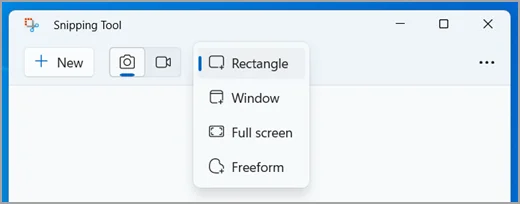
Choose Rectangle.
Select the camera, open the shape menu, then choose Rectangle.
This lets you choose just the part you need. Some versions display the words Rectangle mode beside the shape icon.
STEP 3
Click New to begin.
Select New in the top-left corner of Snipping Tool.
Make sure the page you want is visible before you click New. Press Esc if you need to cancel.
STEP 4
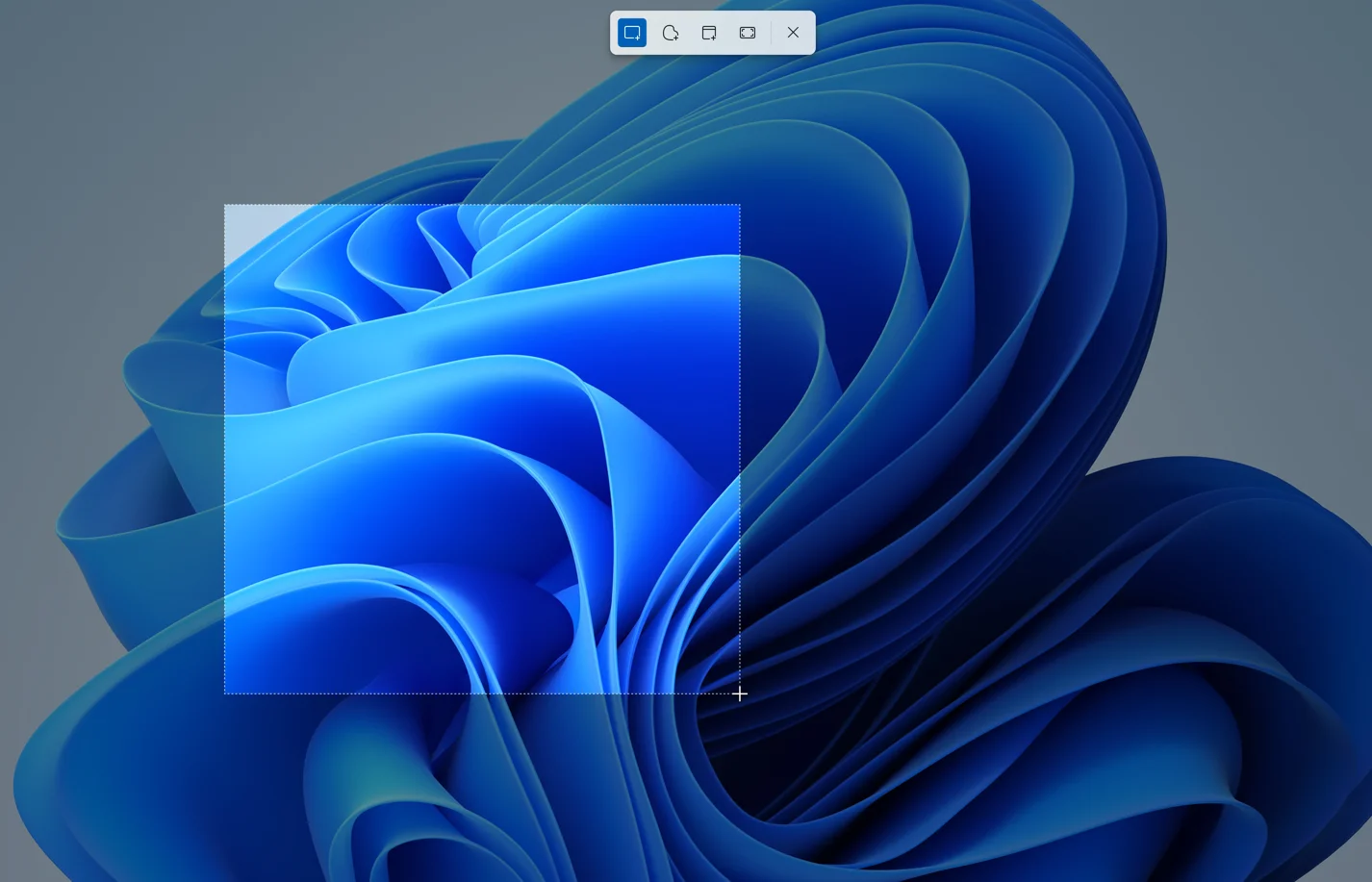
Drag around the part you want.
Hold the left mouse button at one corner. Drag to the opposite corner, then let go.
This example captures the Windows wallpaper; yours will show your own page. Leave out private details.
 1 · Hold here2 · Drag here & release
STEP 5
Save your picture.
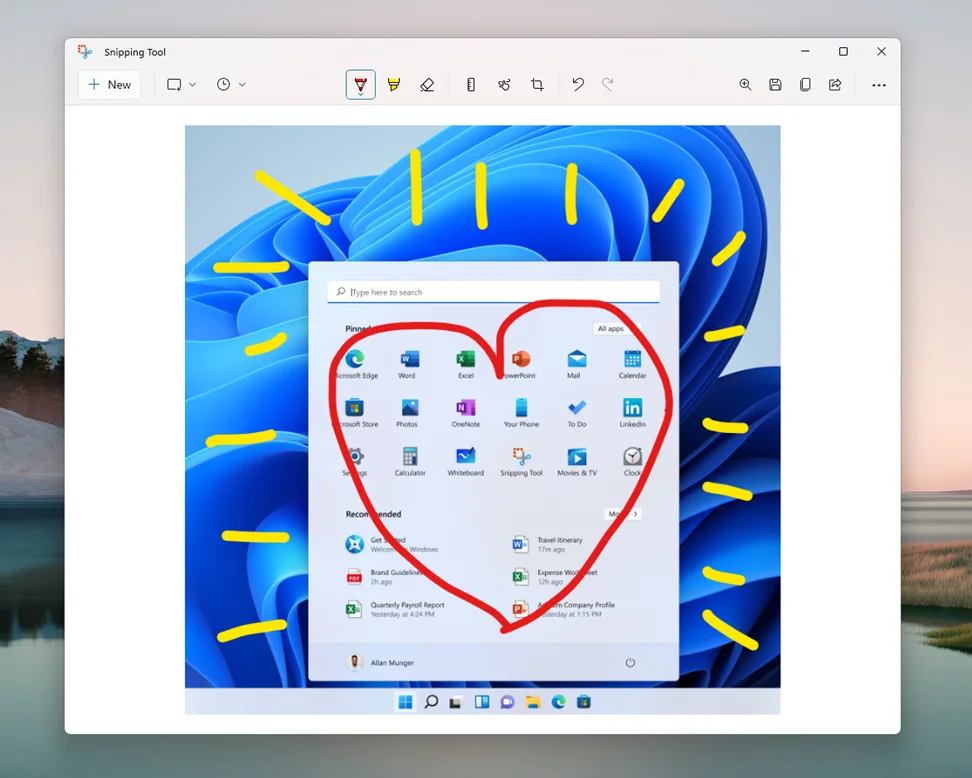
Open your capture (click its notification if needed). Select the Save icon, choose a folder and name, then Save.
The picture and coloured marks are Microsoft’s example, not something you need to recreate. This earlier editor has the same disk-shaped Save control; you can also press Ctrl + S. Recent versions may save automatically.
IF SOMETHING LOOKS DIFFERENT
A little help along the way.
A missed key or a different app version can change what you see. It doesn’t mean you’ve done anything wrong.
I cannot find Snipping Tool+
Open Start and type the full name, Snipping Tool. You can also hold the Windows key and Shift, then press S to open the capture controls directly.
I captured the wrong area+
Choose New again and draw a new rectangle. Start just outside one corner of the part you want, then drag to the opposite corner.
Where did my screenshot go?+
Check the folder you selected when saving. If your version saves automatically, check Screenshots. You can change automatic saving and its location in Snipping Tool’s Settings.